Wedding photos used to mean waiting weeks for the photographer's gallery. The photo-sharing page lets every guest contribute their snapshots in real time — from the ceremony, the dance floor, the late-night moments only they catch. This article describes what your guests see when they upload and how to nudge them toward using it.
Where the page lives
Once you've published your couple page, the photo upload sub-page is at:
nevaplan.com/rsvp/{your-event-code}/photos
The button to reach it is on your main couple page, and the URL is what gets encoded on the QR Table Cards you print and stand on each reception table. A guest with a phone camera can tap (or scan) and start uploading inside ten seconds — no account, no login.
What a guest sees
The page is two stacked blocks:
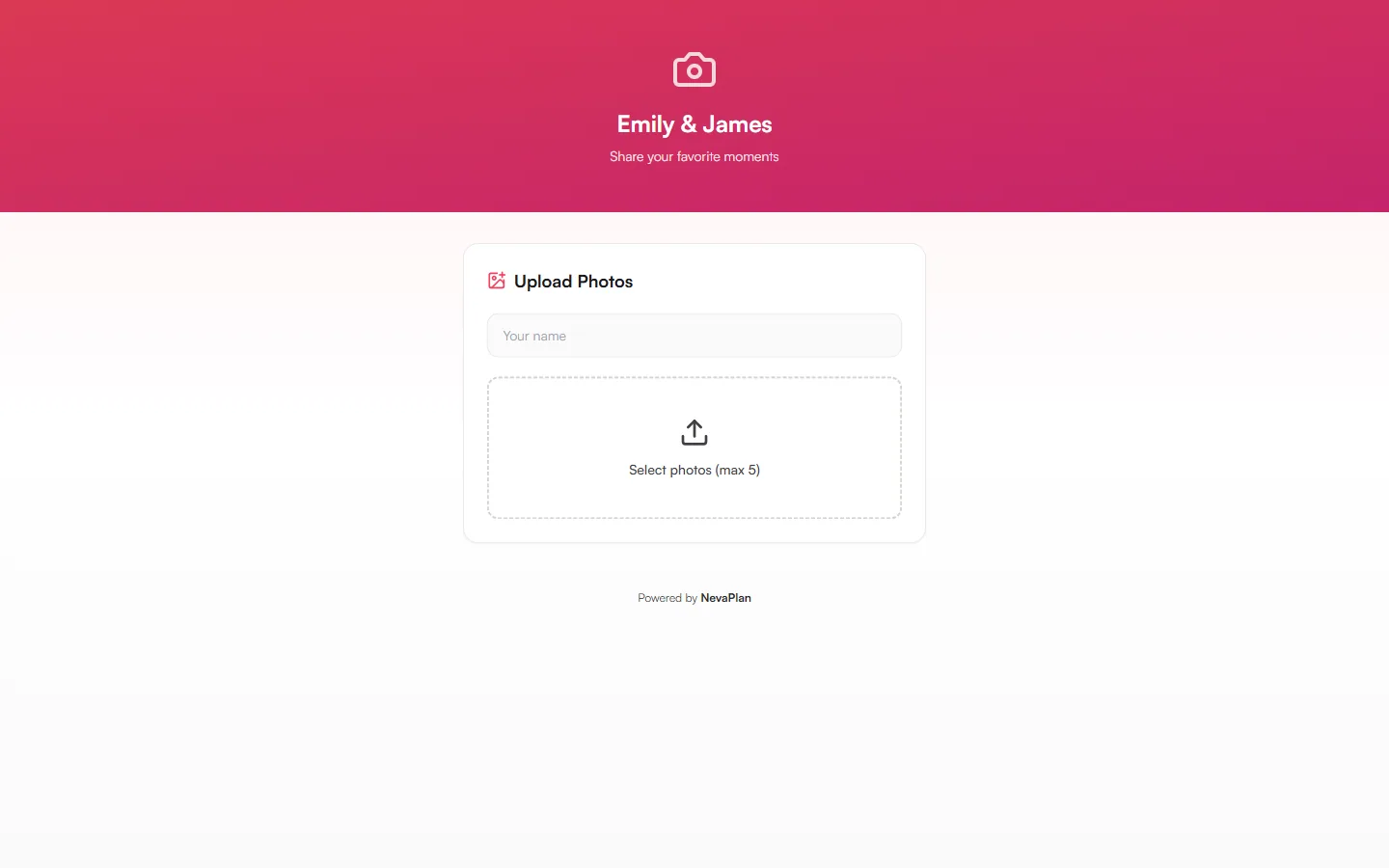
- Upload — a name input, a file picker, a CAPTCHA, and the upload button
- Shared Moments — a grid of photos already uploaded by other guests (only shown when there are any)
The hero at the top shows your names ("{{bride}} & {{groom}}") and a short subtitle — "Share your favorite moments" — in your wedding's primary color.
Upload limits
Every upload is constrained by:
| Limit | Value |
|---|---|
| Files per upload | 5 (the picker silently slices to the first 5 if more are chosen) |
| File size | 5MB per file |
| File types | JPEG, PNG, WebP (validated by magic bytes server-side, not just file extension) |
| Rate limit | 5 uploads per hour, per device |
| CAPTCHA | Cloudflare Turnstile, required before the Upload button enables |
| Guest name | Optional — defaults to "Guest" if left blank |
A guest uploads in batches of up to 5 photos, capped at 5 uploads per hour per device — roughly 25 photos an hour. The CAPTCHA solves itself within a second on most browsers; if a guest is stuck, asking them to open the link in their phone's actual browser (not Instagram's or WhatsApp's in-app one) usually fixes it.
The gallery
Once a photo is uploaded, it appears in the Shared Moments grid below the upload block. The grid is visible to anyone who opens the photo-sharing URL — guests can see one another's contributions, not just their own. The order is most-recent-first.
There's no per-guest "my photos only" view from the guest side. If a guest wants to share a private memory, they should not upload it here — it'll be visible to anyone with the URL.
The gallery is public to anyone with the link. Brief your guests not to upload anything they wouldn't want other wedding guests to see. The page isn't indexed by Google, but it isn't password-protected either — the URL itself is the only gate.
How to encourage uploads
Three patterns that work well:
- The QR card on every table — guests scan during cocktail hour and the gallery starts filling before dinner. Print and place at least one card per reception table.
- A mention from the MC or DJ — a single announcement at the start of the reception ("scan the QR card on your table to share your photos with the couple") nudges the late-adopter half of the room.
- A reminder in the morning — a WhatsApp message the day after, "thanks for being there — if you took photos, the upload page is still open at [link]" tends to bring in a second wave.
Set realistic expectations: phone cameras vary wildly and the gallery will be a mix of polished and casual. The point isn't to replace the photographer — it's to capture moments the pro didn't catch (the table where you didn't make it during cocktail hour, the slow-dance at midnight).
Downloading what guests upload
From the app's gallery view (the one you see as the couple, not the public one), you can download the full collection as a single ZIP. Each photo retains the guest's name (or "Guest" for blank submissions). See Exporting your data.
The ZIP is a one-time snapshot — re-download if more photos come in later. Many couples wait a week after the wedding before archiving, to give the late uploaders time to catch up.
Turning the page off
The photo page follows the same publish toggle as your couple page (Enable Public RSVP). Turning that off disables the upload as well, and the guest sees the unavailable state when they try.
The data isn't deleted when you toggle off — the gallery and the ZIP archive remain in the app for you. Most couples leave the upload page on for 1–2 weeks after the wedding, then turn it off once contributions stop.
Next steps
Once the photo-sharing flow is live:
- Generate the QR Table Cards (PDF) — and put one on every table
- Plan the photo archive download — typically a week after the wedding
FAQ
Yes. The name input is optional; if a guest leaves it blank, their photos are labeled "Guest" in the gallery and the archive. Most guests do enter their name when prompted — the field is right above the upload button.
There's no public delete button — only you (the couple) can remove photos, from the in-app gallery view. Guest uploads land in the Media area under "Guest Uploads"; select the photo(s) and delete (it's a soft delete, so it's reversible on the backend if needed). Removing it pulls it from the public gallery too.
No — the upload accepts only JPEG, PNG, and WebP image formats. Live photos from iPhones upload as still images (the motion is dropped). Videos would need a separate workflow (email, AirDrop, a cloud-drive link).
There's no per-upload cap beyond the 5-files-per-batch rule, and the system doesn't enforce a hard total. A wedding with 200 guests each contributing 10 photos lands around 2000 images, which the gallery handles fine but the ZIP archive can grow large (500MB+).
Uploaded photos appear in the public gallery immediately, with no approval step in the guest-facing flow. If you want a moderation step before public display, that would need to be handled inside the app — check the in-app gallery for owner-side controls.