Most of the time your wedding data lives safely on the server, but there are moments — handing the venue a printout, archiving photos after the day, briefing the caterer — when you want a local copy. Wedding Planner ships with three export paths today. The rest of this article is honest about what isn't there yet, so you don't waste time looking.
What you can export today
Three things, each with its own button in its own module:
| Export | Where | Format |
|---|---|---|
| Guest list | Guest List page | |
| QR Table Cards | RSVP & QR Codes page | |
| Photo archive | Photo gallery / dashboard | ZIP of all guest-uploaded photos |
That's the whole inventory at the moment. The sections below describe each.
Guest list PDF
From the Guest List page, the Export PDF button produces a printable table with the guest's name, RSVP status, table assignment, and meal information. It's the right document to hand to the venue coordinator and the caterer in the last week before the wedding.
The PDF reflects the current state of the list — re-export if anything changes between printing and the wedding day.
The fastest way to clean up a guest list before exporting is the search and filter row on the Guest List. Filter to Confirmed guests only, export, hand to the caterer. The PDF respects the active filter.
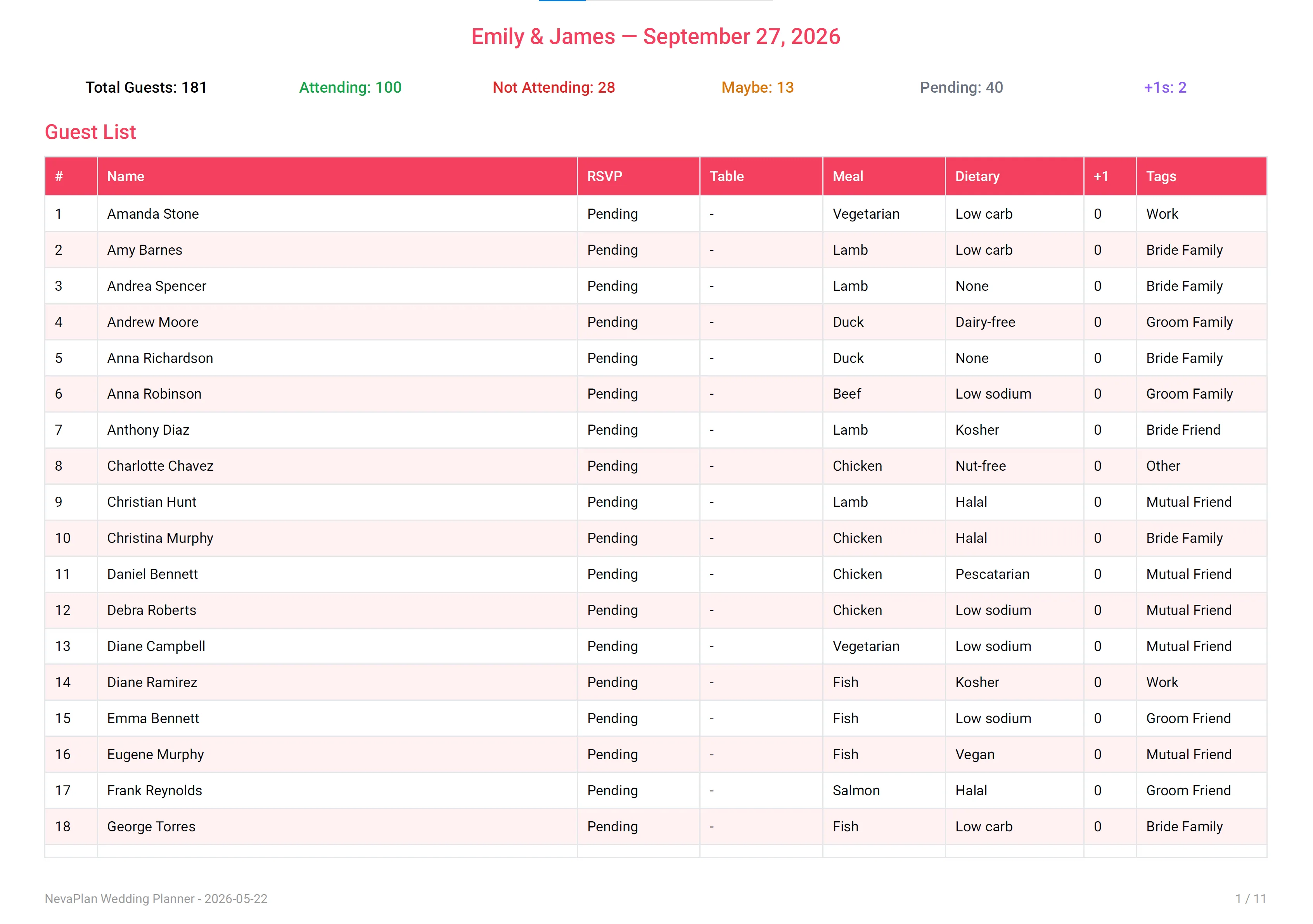
QR Table Cards (PDF)
On the RSVP & QR Codes page, the Download QR Table Cards (PDF) button generates a stack of cards you can stand on each table at the reception. A guest scans the QR with their phone and lands on your public couple page, where they can browse the photo gallery and upload their own snapshots.
The cards are sized to fold over a place card holder or sit in a standard table tent.
Photo archive
After the wedding, guests upload pictures via the photo-sharing page. From the gallery view in the app, you can download the full collection as a single ZIP. Each photo retains the guest's name (or "Guest" if they left the name blank) so you know who took what.
The ZIP is a one-time snapshot — if more photos come in later, you'd re-download. There's no scheduled auto-archive.
Photos can be large. A wedding with 200+ uploaded pictures often produces a ZIP of 500MB+. Download on a stable connection and store somewhere with room (cloud drive, external disk). The browser may time out mid-download on slow networks — try again or use a different network if it stalls.
What isn't there yet
To set expectations clearly, these exports are not available at the moment:
- No full-account export — there's no "download everything as JSON" or "give me a backup file"
- No Budget CSV / PDF — your budget categories, payments, and supporters live only in the app
- No Timeline PDF — task lists can't be exported, only viewed and filtered
- No Vendor PDF — vendor cards stay in the app
- No Audit Log export — the log is browseable but can't be downloaded
- No ICS calendar feed — the calendar view doesn't export to Google or Apple Calendar
- No seating PDF (separate from the guest list) — the table assignments appear inside the guest list PDF, but there's no standalone seating diagram export
If any of these matter for your workflow, the workaround for most of them is a screenshot — but that's clearly not a substitute for a real export.
CSV import vs export
The Guest List supports importing a CSV (for adding many guests at once) but doesn't export a CSV. The import format accepts these columns: name, tag, saveTheDate, invitation, rsvpStatus, phone, email, mealSelection, dietaryRestrictions, allergies, giftType, giftAmount, accommodation, notes. See Building your guest list.
When to export
A short list of moments to think about pulling a copy:
- Two weeks before the wedding — hand the venue and caterer a current Guest List PDF
- One week before — print and place the QR Table Cards
- The week after — once guest photo uploads slow down, archive the photo ZIP
Beyond those, your data stays in the app and is backed up server-side. If you ever need a deeper export — say you're closing your account and want everything in writing — reach out to support and they can arrange a one-off data export from the database.
Next steps
If exports felt thinner than expected, here are the most useful in-app workflows that fill some of the gap:
- Filter and search the guest list — the in-app view is often faster than reaching for a PDF
- Review the seating plan — meal counts and assignments live there
- Read the audit log — for historical "who changed what" without needing a download
FAQ
A complete archive (e.g. JSON) isn't implemented yet. For now the safest backup is the per-page PDF for your guest list, plus the photo ZIP after the wedding. If you have a strong need for an account-level export, message support and they'll generate one for you.
Yes, if you've granted them VIEW or EDIT access to the GUEST_SEATING module under Sharing. The Export PDF button appears with the same data they're allowed to see.
The Budget page doesn't export to PDF or CSV today. The workaround is to screenshot the summary cards and category table, or copy the values into a separate spreadsheet by hand. A proper export is on the roadmap but not yet built.
Yes — the import doesn't match against existing records, so re-importing a slightly edited file creates duplicates. To make corrections, edit individual guests in the app rather than re-importing.
PDF exports pull the latest state at the moment you press the button — no cache. The dashboard separately uses a short-lived cache, but exports do not.