When you turn on RSVP, you publish what we call the couple page — a single public URL that wraps your wedding's basics, your custom message, and the RSVP entry point. This article describes what's on that page and how to make it look the way you want. For the response-collection mechanics, see Enabling RSVP and sending guest links.
Where it lives
Once published, the page is at:
nevaplan.com/rsvp/{your-event-code}
The event code is generated on the RSVP & QR Codes page. A typical code looks like sarah-michael-2026. Once you've shared the URL on save-the-dates or social media, don't change the code — old links break and you'd need to re-send them all.
How to publish
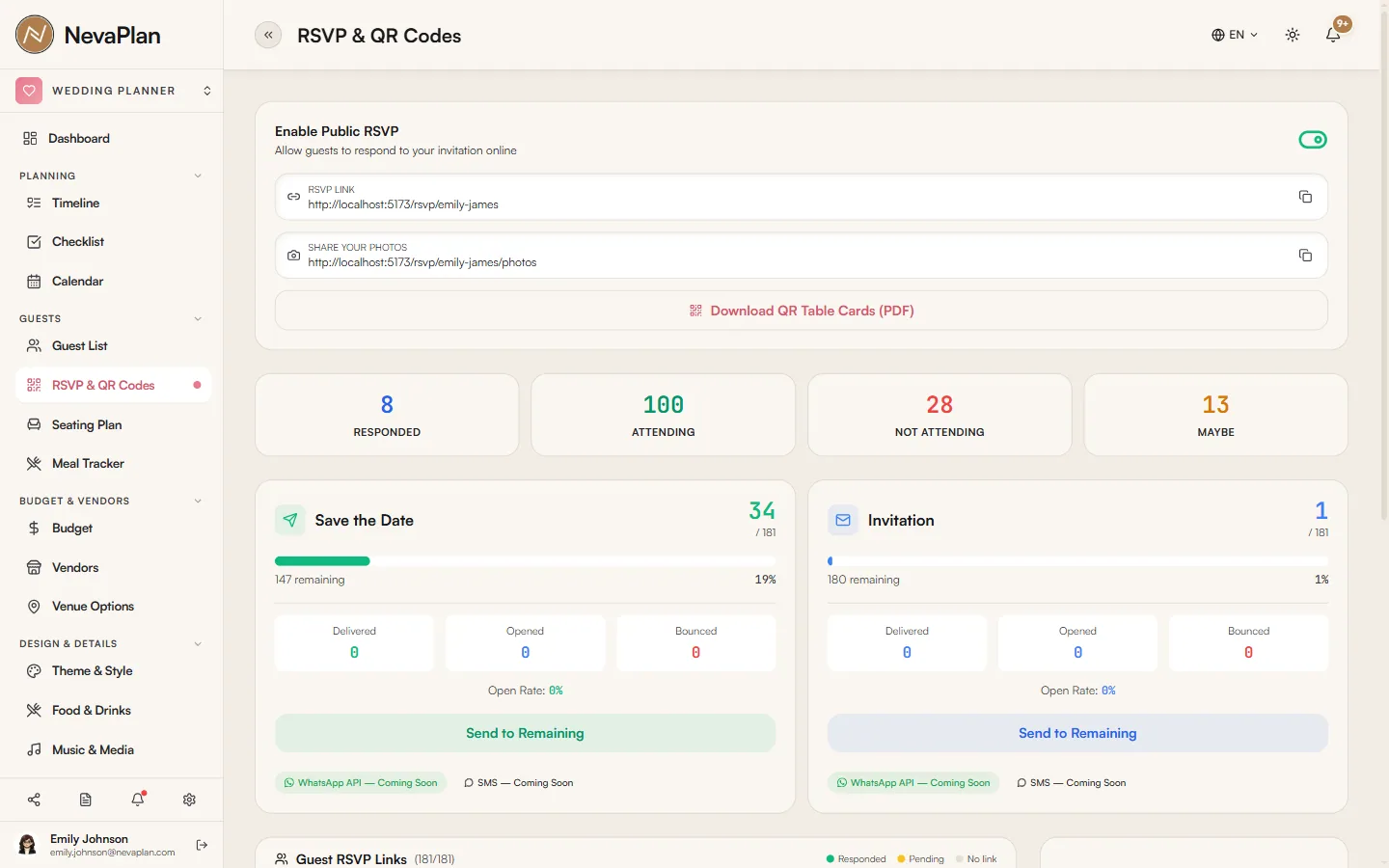
One step from the RSVP & QR Codes page: turn on Enable Public RSVP. The moment you flip the switch, the system mints your event code (the {your-event-code} part of the URL) and the page goes live.
If the event code somehow doesn't get created, a Generate Event Code button appears — press it to mint one manually. Until the switch is on and a code exists, anyone visiting the URL sees an error state rather than your page.
What guests see
The page is intentionally focused — it's the place where guests respond to your invitation, not a full wedding website. Top to bottom:
| Section | What's shown |
|---|---|
| Hero | Your couple photo, names, wedding date, location |
| Your message | The custom text you wrote in RSVP Message |
| RSVP form | A guest follows their personal link from here to respond |
| Photo gallery link | A button leading to the photo-sharing page |
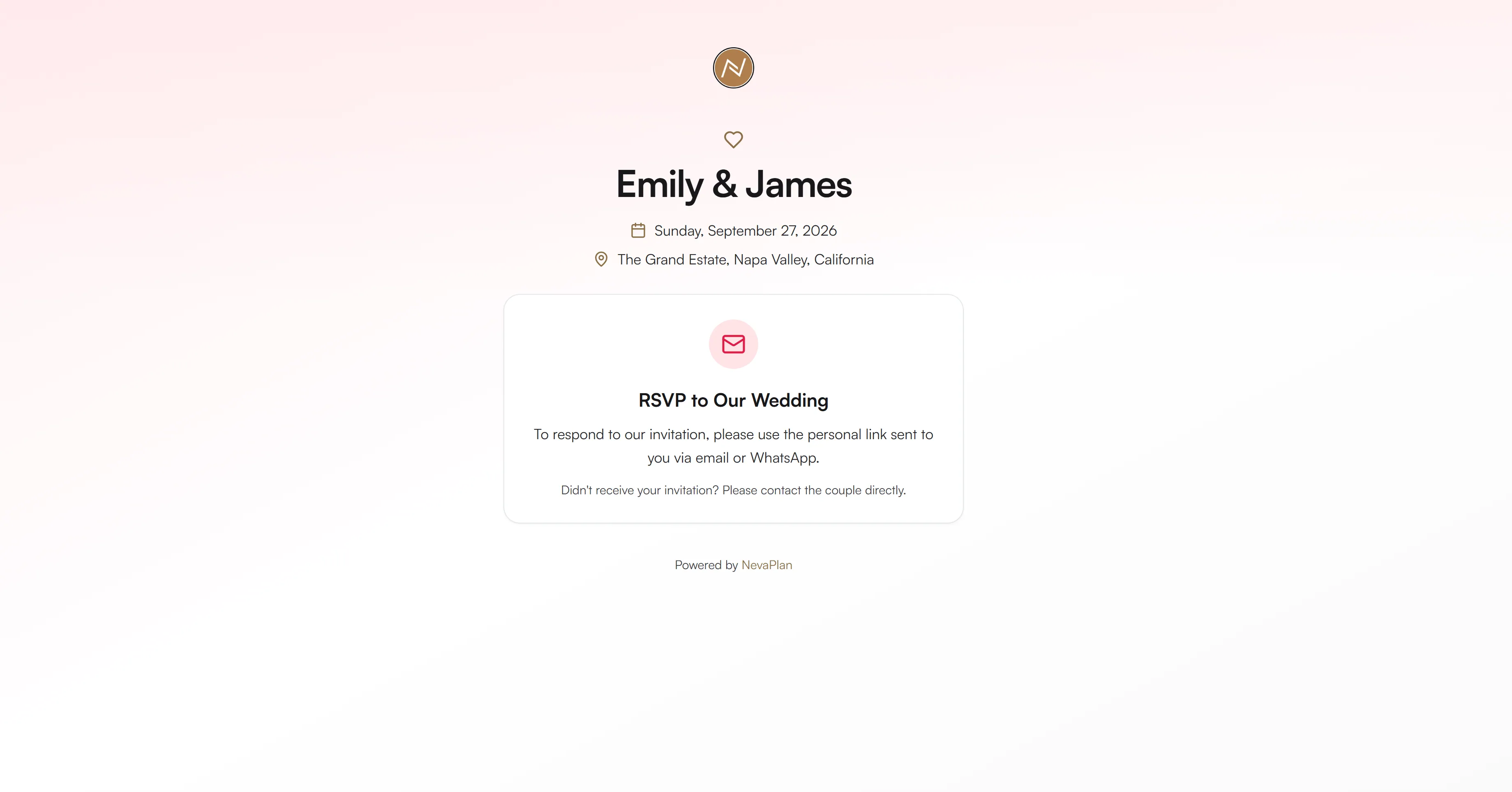
There are no separate "Our Story", "Schedule", "Travel & Stay", "Registry", or "Wedding Party" sections built into the page today. If you need a richer wedding website, many couples link to a third-party website builder or hosted wedding-site service from the RSVP Message field.
Theming
The page picks up your primary palette color automatically. You set this under Settings → Theme & Style by editing your wedding's primary and accent colors (each accepts up to 3 hex values). The first primary color becomes the page's accent — used on buttons, links, and the upload control on the photo page.
If you change the color in Theme & Style later, the public page reflects the new color on the next visit — no re-publish needed.
For the broader Theme module, see Choosing your theme and style.
The couple photo
The couple photo (the round portrait on the page's hero) comes from the photo you uploaded under Settings → Wedding Setup. A square photo and a tight crop of the couple work best.
If you skip the upload, the hero shows a graphic placeholder — the page still works but feels less personal. Most couples upload an engagement photo and call it done.
The custom RSVP message
The RSVP Message field is the closest the page gets to a "personal note from the couple". Use it for:
- A welcome line ("We're so excited you're here!")
- Practical context ("Please respond by September 1")
- Constraints ("Sorry, no children at the reception")
- A short note about the dress code or theme
Whatever you write here is the only personalized text on the page outside the basics. A couple of sentences is usually right; long paragraphs get skimmed.
If you have a richer wedding website hosted elsewhere, drop the URL into the RSVP Message field. Guests who want more detail can click through.
The photo-sharing sub-page
A second URL lives one level below:
nevaplan.com/rsvp/{your-event-code}/photos
That's where guests upload pictures during and after the wedding. The button on your couple page links straight there. For the upload flow itself, see Guest photo sharing.
Turning the page off
Toggle Enable Public RSVP off and the page returns an unavailable state when anyone visits. The underlying data isn't deleted — flip it back on and you're live again. Many couples disable the page a few weeks after the wedding, leaving the photo gallery accessible to the couple in the app.
Published or not, the URL is publicly reachable by anyone with the link while it's on. There is no password gate, no "hide from search engines" toggle, and no per-guest authentication on the page itself — the personal-link RSVP flow handles guest identity, but the page chrome is open. Don't put anything on the page you wouldn't want a stranger reading.
Next steps
After publishing, the next two practical moves:
- Send each guest their personal RSVP link — the public page accepts responses only via personal tokens
- Print the URL on your save-the-date cards before mailing
FAQ
Not yet — custom-domain support isn't built. The page is always served at nevaplan.com/rsvp/{your-event-code}. A URL shortener (bit.ly etc.) is the closest workaround for printed materials.
No standalone sections beyond the basics. The hero shows your date and location; anything richer (multi-day schedule, travel logistics, hotel block info) lives in your RSVP Message as free text, or on a separate site you link to from there.
Generally yes — the page is served publicly. There's no built-in noindex toggle. If you don't want it indexed, picking an obscure event code (not just your names) helps but doesn't fully hide it.
Not on the page itself. The RSVP form has a Note field where a guest can send a short message — that's the main way they reach you through this flow.
Many couples pair NevaPlan's RSVP/couple page with a separate hosted wedding-site service for the richer storytelling. Drop the other site's URL into your RSVP Message, and use NevaPlan for the data side (guest list, budget, seating, vendors). A built-in richer page isn't in NevaPlan today.