Theme & Style is where the visual identity of your wedding lives — the colors, the attire, the floral choices. Everything you record here connects to two other modules: Budget (costs flow into the Wedding Attire and Florals categories automatically) and Vendors (the florist and bridal shops you've chosen).
What "theme" means here
A theme isn't just a color name. The page collects four things that together define the look:
- Color Palette — up to six colors (three primary, three accent), each set with a color picker or a hex code
- Style Keywords — short phrases (e.g. "Garden Romantic", "Modern Minimal", "Rustic Boho")
- Inspiration Notes — free text for everything else (vibe, era, references)
- Mood Board Image — one or two uploaded reference photos
You don't need all four — even a palette alone is useful when talking to florists and decorators.
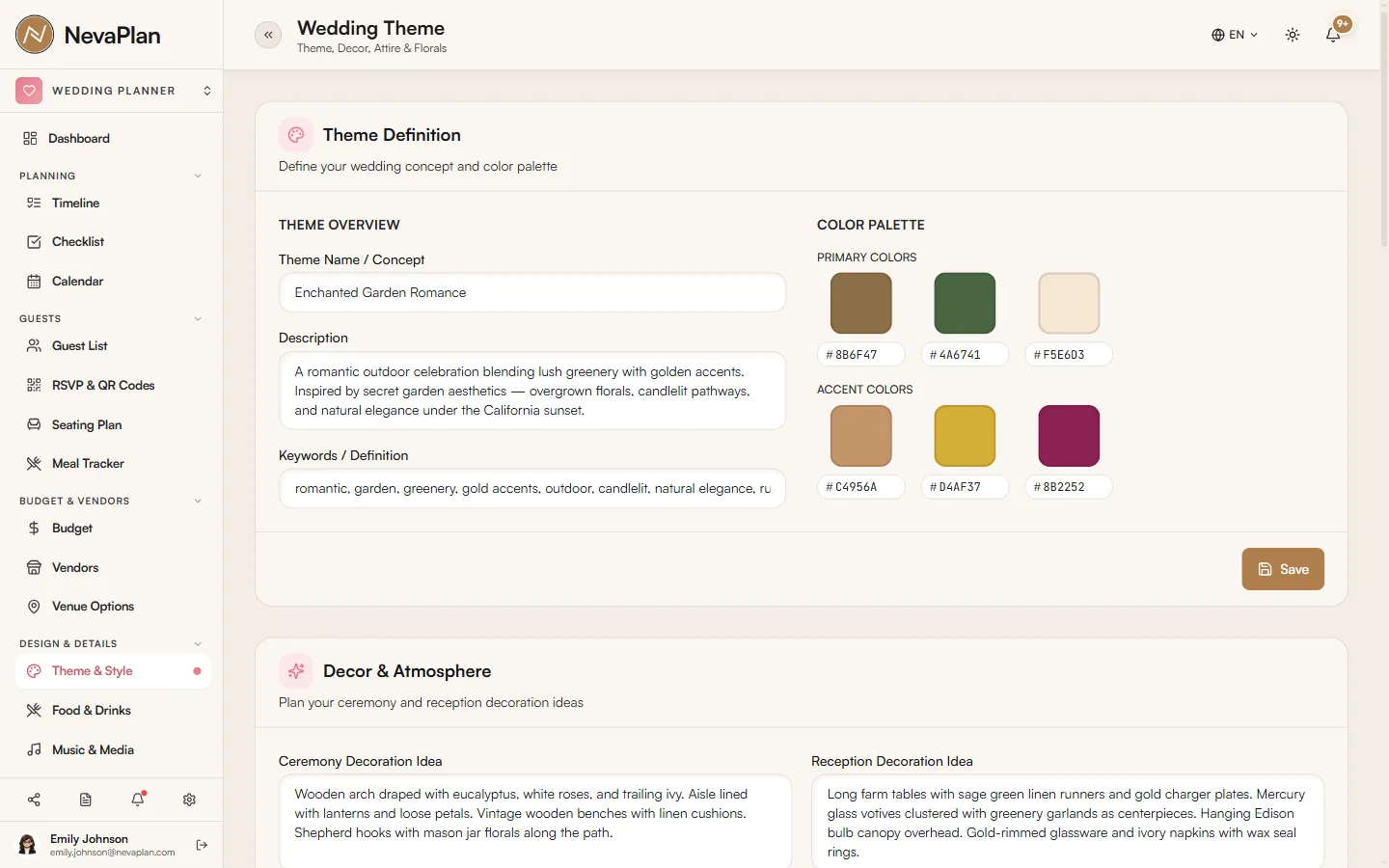
Color palette
The palette has six slots — three primary and three accent colors. Each slot works two ways:
- Color picker — click the swatch to open your system color picker
- Hex code — type or paste a hex value (e.g. from a Pinterest screenshot) into the field below the swatch
Leave any slot blank if you don't need it — a two- or three-color palette works fine. Whatever you set is embedded in the Save the Date and Invitation templates, so the design carries the same colors.
Keep your palette to three to four colors max. More than that and the printed materials (invitations, menus, signage) look noisy. A primary, a secondary, and one or two accents is the classic recipe.
Attire items
The Attire section lists every outfit and accessory you're tracking — usually:
- Bride's dress
- Groom's suit or tux
- Bridesmaids' dresses (one entry per person, or one entry for the group)
- Groomsmen's suits
- Shoes, veils, ties, cufflinks
For each item:
| Field | Note |
|---|---|
| Description | e.g. "Bride's dress — Vera Wang Liesel" |
| Vendor | The bridal shop or tailor (links to your Vendors list) |
| Cost | The price (auto-flows into the budget) |
| Status | Researching / Ordered / Fitted / Picked Up |
| Notes | Anything from "second fitting May 12" to delivery tracking |
The total of all attire costs becomes the Wedding Attire category in your Budget. You don't add the category manually — it's created and updated automatically as you edit attire items.
Floral items
Florals work the same way as attire, but the typical line items are:
- Bride's bouquet
- Bridesmaid bouquets
- Boutonnières
- Centerpieces (per table)
- Ceremony arch / aisle florals
- Reception entrance
Cost per item plus quantity gives a total. The aggregate becomes the Florals category in Budget.
Don't manually edit the Wedding Attire and Florals categories in Budget. They're regenerated from Theme on every change. If you delete one, it'll come back as soon as you save an attire or floral item. Edit the underlying items here in Theme instead.
Linking to vendors
Each attire item and floral item can be linked to a vendor from your Vendors list. The link does two things:
- Lets you click the vendor name to jump to the vendor card (contact info, contract)
- When you mark the attire item as Paid, it adds the cost to that vendor's paid amount — same auto-sync as a regular budget payment
If you haven't entered the bridal shop or florist as a vendor yet, do that first, then come back here and select them in the dropdown.
Status tracking
The Status field is more useful than it looks. Sorting attire by status gives you a clear picture:
- Researching — still shopping
- Ordered — placed, waiting for arrival
- Fitted — arrived and fitted
- Picked Up — at home, ready to go
In the final two months, anything still in Researching or Ordered is a flag — most bridal shops need 6–9 months for custom dresses, so a late "Researching" entry needs immediate attention.
Mood board image
You can upload one or two reference images (5MB max each). They appear at the top of the Theme page and can be shared with vendors as a quick visual brief. Florists and decorators ask for a mood board almost universally — having one ready saves you from cobbling it together by email.
Next steps
Once your theme is locked in:
- Make sure each item's vendor is in your list — so the budget sync works end-to-end
- Check the Florals and Wedding Attire categories in Budget — confirm the auto-generated totals match what you expect
FAQ
Because it's auto-regenerated from your attire items here. To remove the category permanently, delete the attire items first (and any linked payments). With no underlying data, the category disappears.
Within Theme, yes — each attire item is its own row, so you can label them as you like ("Bride — Dress", "Groom — Suit"). In Budget, they're aggregated into a single Wedding Attire category — there's no split out of the box. If you want separate Budget categories, you'd have to track them manually outside Theme.
There's no built-in share button. The simplest workflow is to right-click the mood board image, save it, and attach it to your vendor email. The image you upload is full-resolution, so quality holds up in a printed brief.
Update the palette anytime — it's a single source of truth. Items you've already exported (e.g. printed save the dates) won't update retroactively, but anything you haven't sent yet picks up the new colors. Change is cheap before paper goes to print, expensive after.
Only if you've granted them VIEW or EDIT access to the THEME_DECOR module under Sharing. Many couples grant the partner EDIT here so attire decisions can be co-owned.