The budget module is built to keep your wedding costs under control. You set a total budget, distribute it across categories, and record every payment. You also track money contributed by your family separately. Everything flows automatically into the Budget Planner module, so you never have to enter it twice.
Before you start
You set the total budget (totalBudget) first under Settings → Wedding Setup. This number is the foundation of the Left to Budget and Left to Spend calculations, so getting it right matters. If your budget isn't finalized yet, enter an estimate and update it later.
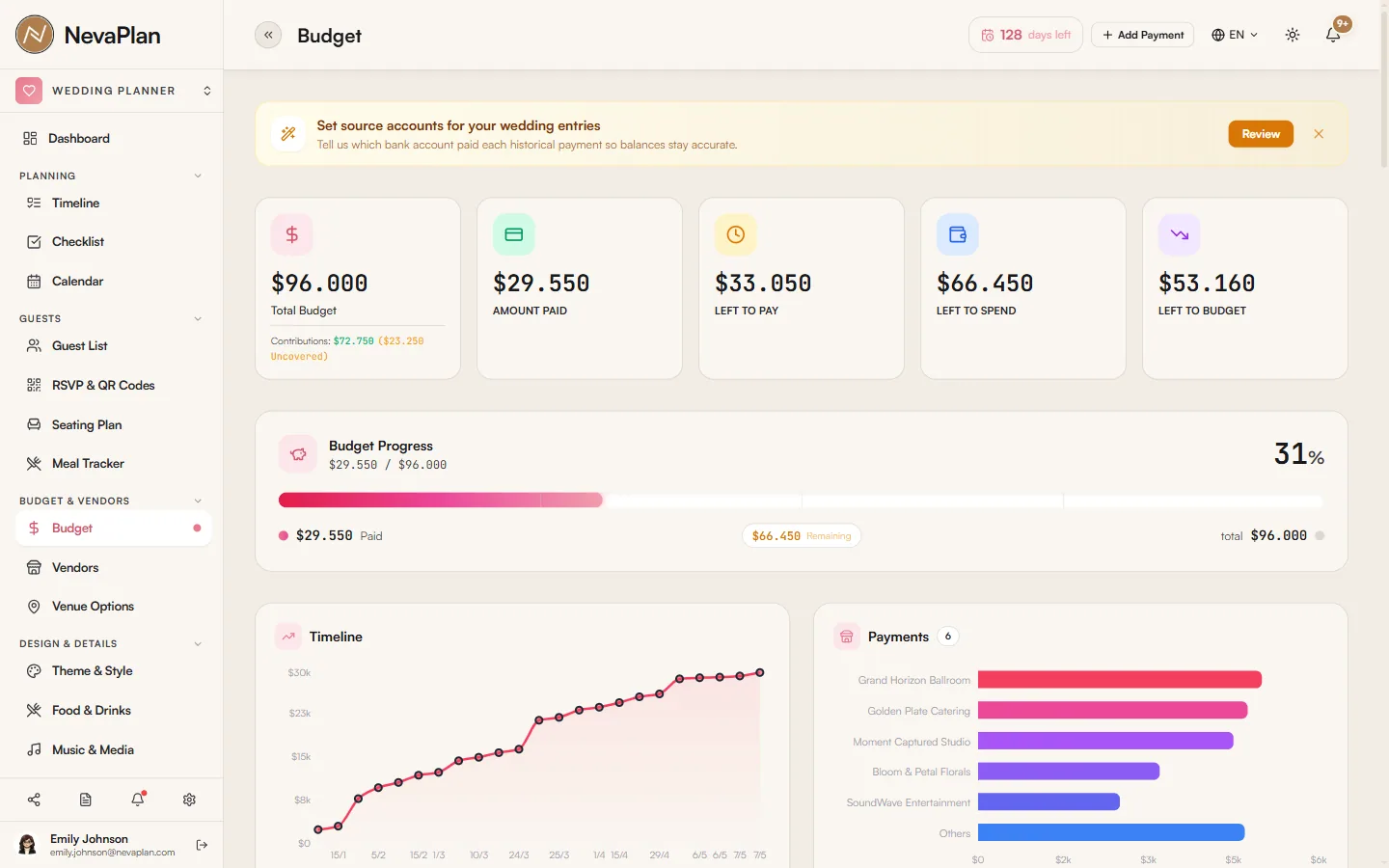
The summary cards — what they mean
The five cards at the top of the page hold the most critical information:
| Card | Meaning |
|---|---|
| Total Budget | The total budget you set |
| Paid | All payments you've marked as paid |
| Left to Pay | Sum of payments planned but not yet paid |
| Left to Spend | Total − paid (the theoretical budget you have left) |
| Left to Budget | Total − sum of category budgets (the part you haven't allocated) |
If Left to Budget is positive, you have money you haven't allocated to categories — meaning some categories are missing or underfunded. If it's negative, you've over-allocated and need to trim categories.
Adding categories
Distributing your budget into categories is essential to understand where your money goes. Add one with the Add Category button. The form placeholder offers a suggestion:
e.g., Venue, Catering, Photography
Typical wedding categories:
- Venue
- Catering (food & drinks)
- Photography & Video
- Music / DJ
- Decor & Flowers
- Bridal Attire (bride/groom outfits)
- Invitations
- Transportation
You enter a planned amount for each category. As you make payments in that category, the actual amount is calculated automatically.
Don't over-detail your categories at first — 6–8 main categories are enough. Splitting them too finely makes tracking confusing. Add more as you actually need them.
Two auto-generated categories
If you add an attire or flower item on the Theme & Style page, the system automatically creates the "Wedding Attire" and "Florals" categories in the budget. It's not recommended to edit these by hand — they update automatically based on the costs in Theme, and they'll regenerate even if you delete them. If you delete the theme items and there's no linked payment, they disappear automatically.
Adding payments
This is where the real work happens. When you make (or plan to make) an expense, record it with the Add Payment button. The form fields:
| Field | Note |
|---|---|
| Description | e.g. "Venue deposit" |
| Amount | The amount |
| Date | Payment date (or planned date) |
| Due Date | Final payment date (if not yet paid) |
| Is Paid | Whether it's paid (checkbox) |
| Category | Which category it belongs to |
| Vendor | Which vendor (if any) |
| Payment Method | Cash, card, transfer, etc. |
| Source | Which account or fund it came from |
The Is Paid checkbox is critical:
- Checked (paid): The amount is added to the Paid card, subtracted from Left to Pay, and automatically reflected as an expense in the Budget Planner module.
- Unchecked (planned): It's only added to Left to Pay, and isn't counted as spent yet.
Vendor selection and contract tracking
If you link a payment to a vendor, that vendor's amountPaid field increases automatically. On the Vendors page you'll see the "paid amount / contract price" comparison for that vendor. This field can't be edited manually — it only updates automatically through payments added from the budget. The page even shows a hint for this:
Auto-synced when payments are added on the Budget page.
Adding Financial Supporters
If family or close friends are contributing money, add them in the Financial Supporters section:
- Name — e.g. "Bride's parents"
- Amount — contribution amount
- Received Date — the date the money was received (important — explained below)
- Notes — optional description
The Received Date field is critical:
- If you enter a date: It automatically syncs to Budget Planner as income on the date you set. Form hint: "Will sync to Budget as income on this date."
- If you leave it blank: It's recorded only as a pledge, meaning the money hasn't arrived yet. Form hint: "Leave empty for pledged contributions (no Budget sync yet)."
When you add a supporter who is already registered as a bank account in Budget Planner, the system warns you:
...is already a bank account. ...adding it here would double-count the money...
To avoid double-counting, don't add someone who's already a bank account here.
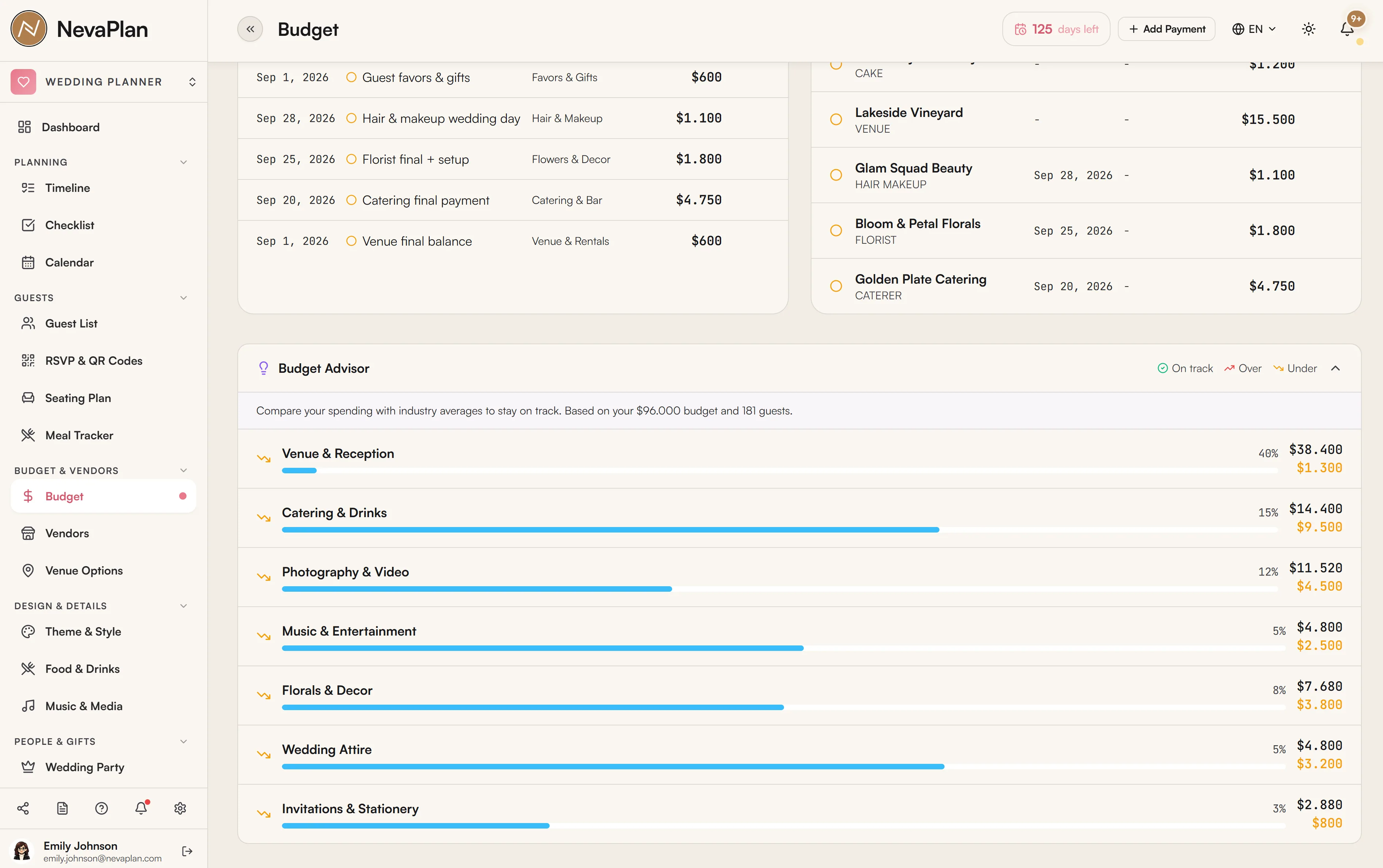
Budget Advisor — recommended distribution
After you set your total budget and add your categories, the Budget Advisor section shows a distribution recommended against industry averages. For example "Catering: 35%", "Venue: 25%". It also shows what you've done, side by side, so you can compare.
This is just advice, not a requirement. Cultural and personal priorities heavily affect budget distribution — if photography matters most for your wedding, allocating 20% to it is perfectly normal.
Connection to Budget Planner
Syncing your wedding budget to Budget Planner is on by default. As long as it's on:
- Wedding payments marked as paid → become expenses in the "Wedding" category group in Budget
- Dated Financial Supporter contributions → become income in Budget
- If you delete a payment on the Wedding side, it's automatically deleted on the Budget side too
To turn this sync off, go to the Integration Preferences setting in the Budget Planner module and disable Wedding to Budget Sync.
Next steps
After you've built your budget structure, the logical order is:
- Add your vendors — enter contract prices, mark "final choice"
- Choose your theme and style — attire/flower costs in Theme flow automatically into the budget
FAQ
Yes, you can update it anytime under Settings → Wedding Setup. Your category distribution and existing payments don't change — only the "Left to Budget" and "Left to Spend" calculations are redone.
No. Existing payment records stay in the old currency, and new ones use the new currency. To avoid confusion, lock in your currency when you first set up the wedding budget.
Two possibilities: 1) You didn't mark the payment as "paid" (only paid ones sync). 2) "Wedding to Budget Sync" is disabled in Integration Preferences. Check the first, then the second.
When adding a Financial Supporter, leave the Received Date field blank. The record then counts as a "pledge" and won't sync to Budget Planner as income. Enter the date when the money actually arrives.
These two categories are auto-generated from the total cost of the attire and flower items on the Theme & Style page. If you delete those theme items and there's no linked payment, the category disappears on its own. There's no manual delete because it would break the sync with the Theme side.
To prevent double-counting. A vendor's "paid" field only updates through payments added from the Budget page. Otherwise you could enter the same payment in two places and break the total.