Choosing the venue is the biggest, earliest decision of the whole wedding — it anchors the date, the guest count, and a quarter of the budget. The Venue Options page lets you put your candidates next to each other and compare the things that actually matter, instead of juggling browser tabs and email quotes.
Before you start
Venues live in your Vendors list under the Venue category. If you haven't added any yet, the page shows:
No Venues Added Yet Add venues from the Vendors page with the "Venue" category, then compare them here.
So the flow is: add each candidate on the Vendors page with the category set to Venue, then come here to compare. See managing vendors for how to add them.
The comparison table
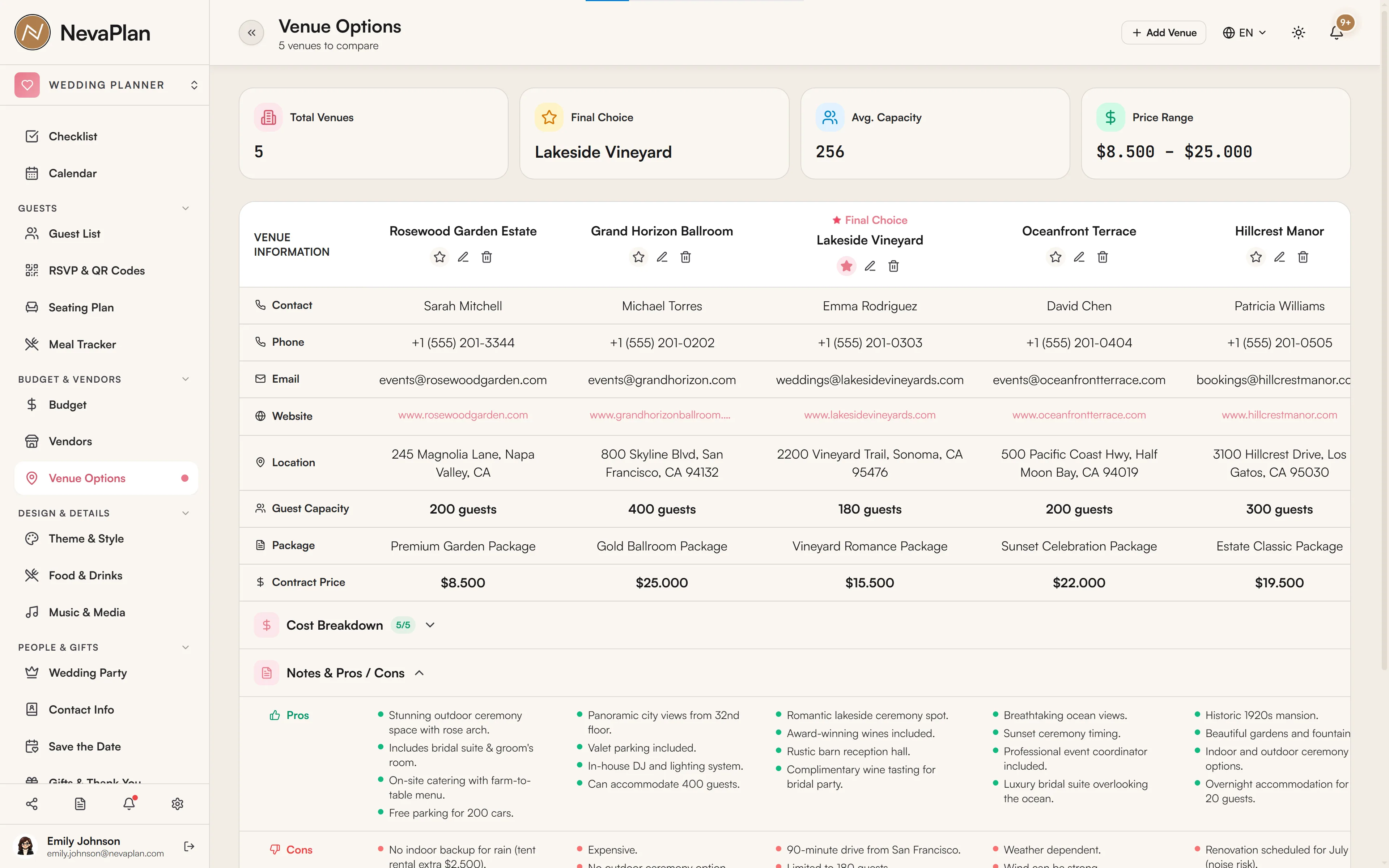
Venues appear as columns side by side (scroll horizontally if you have several). Each column stacks the venue's details in rows so you can scan across:
- Contact — name, phone, email, website
- Location
- Guest Capacity
- Package — the package name they quoted
- Contract Price
The phone and email are tap-to-call and tap-to-email, which is handy when you're following up after a tour.
The cost breakdown
A venue's headline price rarely tells the whole story. Expand the Cost Breakdown on each venue to record up to ten line items:
| Cost line | |
|---|---|
| Venue Fee | Ceremony Fee |
| Food & Drinks | Alcohol |
| Rentals | Corkage Fee |
| Cake Cutting Fee | Parking |
| Tax & Service Fee | Insurance |
Enter the ones that apply and the total tallies automatically. This is where venues that looked similar on the headline price often diverge — one bundles alcohol and rentals, another charges corkage and a cake-cutting fee on top. Filling in the breakdown makes the real comparison honest.
The cost-breakdown line items mirror the categories used in Budget Planning. Recording them here, per venue, makes it painless to move the winning venue's numbers into your budget once you decide.
Summary stats
Four numbers sit at the top of the page so you can read the field at a glance:
- Total Venues — how many candidates you're tracking
- Final Choice — your selected venue (one)
- Avg. Capacity — average guest capacity across candidates
- Price Range — the spread from cheapest to priciest contract
Pros, cons, and notes
Each venue has a collapsible Notes & Pros / Cons area. Type pros and cons one per line (or as sentences) — they render as a bullet list. Use it for the things a spreadsheet can't hold: "stunning garden but no rain plan", "amazing staff, tight parking". Months later, those notes are what you'll actually remember the venue by.
Marking your final choice
When you decide, toggle Final Choice on the winning venue (the star). Only one venue can be the final choice — selecting another clears the previous one, and the chosen venue gets a FINAL badge. The other venues stay on file so you remember which options you'd already ruled out.
Don't delete the runner-up venues the moment you book. Until the contract is signed and the deposit is paid, keep your top two or three — venues fall through more often than you'd think, and re-building the comparison from scratch under time pressure is miserable.
Next steps
Once your venue is chosen:
- Move the venue's costs into your budget — the cost-breakdown lines map straight across
- Mark the venue as your final choice in Vendors too, and start logging deposit payments
- Let the space shape your theme — a ballroom and a barn want different palettes
FAQ
Venues are vendors, so they're created on the Vendors page with the Venue category. This page is purely the comparison view — it reads every Venue-category vendor and lines them up. Add them once in Vendors and they appear here automatically.
No — only one venue can hold the Final Choice badge. Toggling it on a second venue clears the first. If you're genuinely weighing two until the last minute, leave both un-flagged and decide once a contract is in hand.
Not automatically — the breakdown here is for comparing venues. Once you pick one, you record its costs as budget categories and payments on the Budget page. The line items line up, so it's a quick transfer, not a re-entry from scratch.
It's the average guest capacity across all the venues you're tracking — a quick sanity check that your shortlist fits your guest list. If your list is 180 and the average capacity is 120, your shortlist is skewing too small.
Yes, if you've granted them EDIT on the BUDGET_VENDORS module under Sharing — venues live in that module alongside Budget and Vendors.