The Timeline module answers the question "when should I do what?" All your prep tasks are split into 8 time periods, each period's completion percentage is visible, and overdue tasks are flagged in red. On top of that, the system sends automatic reminder notifications.
The 8 time periods
Tasks are grouped in this order:
- 12+ Months Before — long-term work (booking the venue, big decisions)
- 6-12 Months Before — critical vendor selections
- 3-6 Months Before — sending Save the Dates, attire searches
- 1-3 Months Before — invitation printing, fine-tuning
- 1-2 Weeks Before — rehearsals, final details
- 1 Week Before — final confirmations, payments
- 1 Day Before — last-evening prep
- Wedding Day — the wedding-day schedule
Each period expands and collapses as an accordion. Keep the periods you're focused on open and the rest closed.
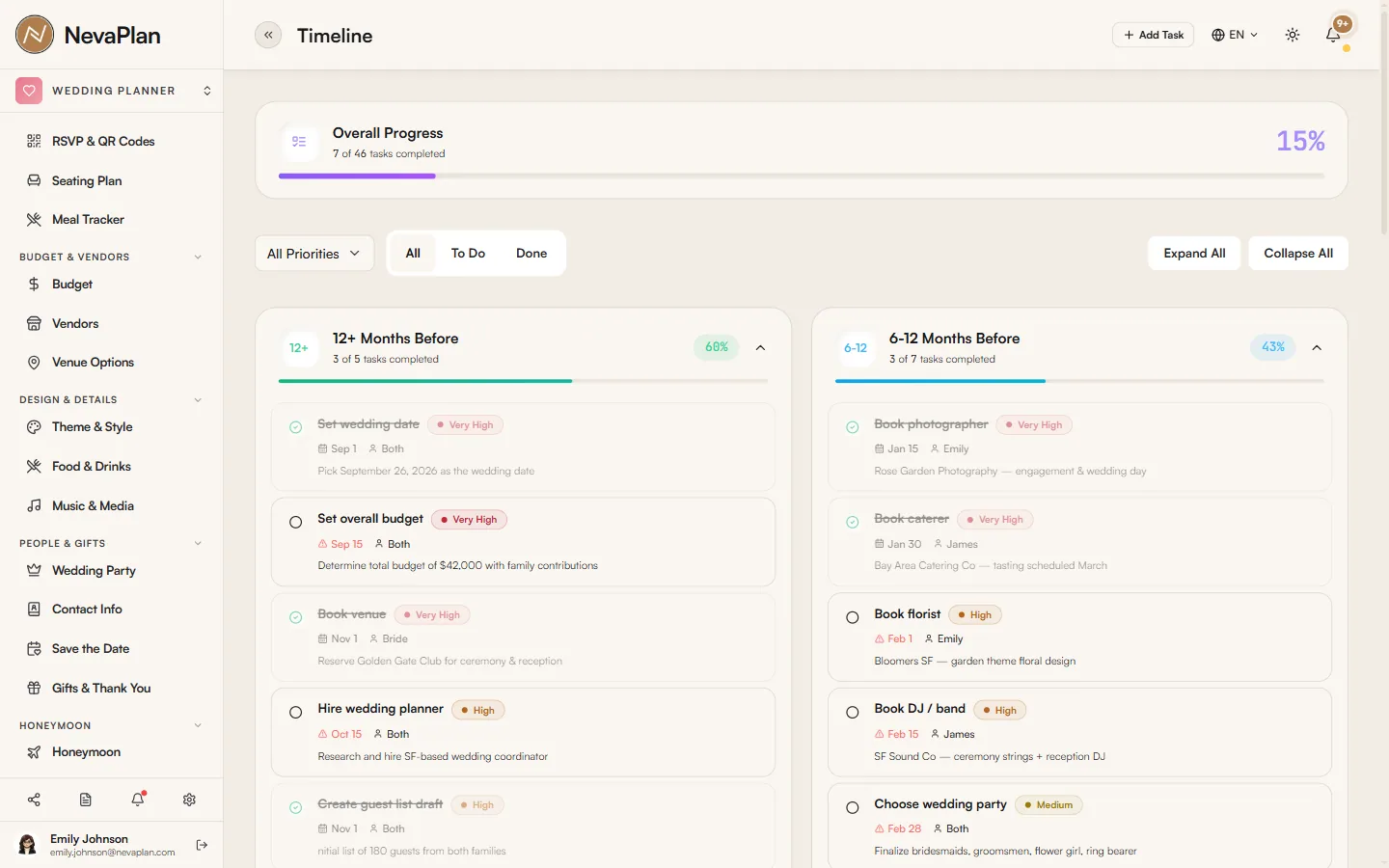
The Overall Progress card
The large card at the top of the page shows your total task count, completed count, and overall completion percentage — so you can see at a glance where your wedding prep stands.
Each time period also has its own small progress bar — for example "3-6 Months Before: 4/7 tasks done (57%)".
Adding a task
The Add Task button opens a modal. The form fields:
| Field | Required | Note |
|---|---|---|
| Task Title | Yes | Max 300 characters. Example: "Book the venue" |
| Period | Yes | One of the 8 periods |
| Priority | Yes | Very High / High / Medium / Low / Very Low |
| Deadline | No | Date picker |
| Person In Charge | No | Bride / Groom / Both / Wedding Planner / Maid of Honor / Best Man / Other... |
| Description | No | Max 1000 characters |
| Time | No | Only shown in the "Wedding Day" and "1 Day Before" periods |
For the Wedding Day and 1 Day Before periods, an extra Time field appears — for planning the wedding-day flow hour by hour. In these two periods the deadline fills in automatically based on the wedding date.
The modal only closes via the X button or Escape. Clicking the background does not close it — this way a half-finished form won't accidentally close and get lost.
Filters
As the task count grows, three filters become useful:
- Priority selector — choose "All Priorities" or one of the 5 levels
- Status tabs — All / To Do / Done
- Expand All / Collapse All — open or close every period with one tap
To see only what's pending, choose Status: To Do and completed tasks are hidden.
The task row
Each task row shows:
- Checkbox — instant complete / undo
- Priority label — colored badge (Very High red, Low green)
- Time — if any
- Deadline — a red "overdue" flag if it's past
- Person in Charge — who's responsible
- Description — a short note
- On hover, the Edit and Delete icons
When you want to delete a task, you get a confirmation:
Delete Task Are you sure you want to delete this task?
Automatic reminders
Even though you add the tasks yourself, the system sends automatic reminder notifications — independent of what you add. It sends a notification when your wedding is 30, 14, 7, 3, 1, and 0 days away (email + in-app + push). There are also RSVP deadline reminders — at 7, 3, 1, and 0 days remaining, and 1 day after.
To manage these notifications, see Notification preferences.
Next steps
After setting up your timeline, the related steps:
- Use the calendar view — see your tasks in a month view
- Wedding-day checklists — for shorter schedules
FAQ
There's currently no feature to bulk-import tasks or use a ready-made template. You'll need to add tasks one by one. Templates may be added later, so stay tuned.
There's no drag-and-drop. To change a task's period, edit the task, select the new period from the Period dropdown, and save.
Deadlines you entered manually don't change — they're fixed dates, independent of the wedding date. Only the Wedding Day and 1 Day Before task times are tied to the wedding date, and those shift automatically when the date is updated.
Yes, if you invite them as a collaborator and grant EDIT access to the CHECKLIST_TIMELINE module, they can add and edit. With VIEW access they can only look, not touch. With NONE access the module doesn't even appear in their navigation.
Completed tasks stay marked "Done" in the list and aren't auto-hidden. To keep the list clean, choose Status: To Do in the filter — only pending tasks show.