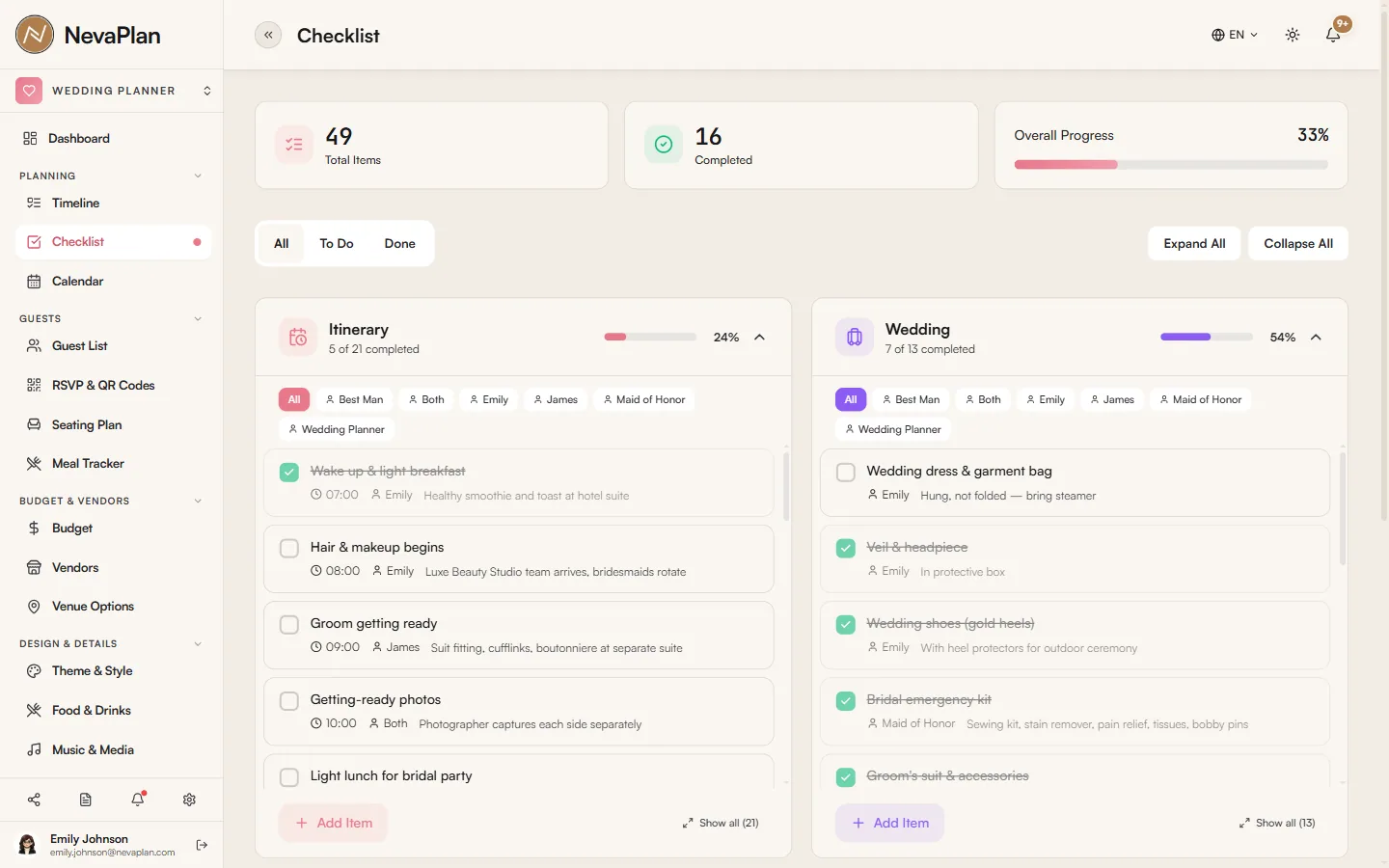
The Timeline module is for the months leading up; Checklists is for the day-of schedule and the packing that goes with it. Instead of free-form lists, the page gives you four ready-made sections to fill in — open each one, add your items, and check them off.
Where checklists live vs timeline
The two modules look similar but solve different problems:
| Timeline | Checklists | |
|---|---|---|
| Scale | 12+ months of work | Hours and minutes |
| Grouped by | 8 time periods | Four fixed sections |
| Used when | Planning ahead | The day itself |
| Example item | "Book the venue" | "Bouquet to bride's room by 9am" |
If you can answer it with "this month, sometime", use Timeline. If you can answer "8:45 AM, ten minutes before the photographer arrives", use Checklists.
The four sections
Checklists is organized into four fixed sections — you don't create lists from scratch, you add items under the one that fits:
- Wedding Day Itinerary — the minute-by-minute schedule from morning prep to send-off. This is the only section where items can carry a time.
- Wedding Weekend Packing — everything for the wedding days themselves (outfits, emergency kit, day-of essentials)
- Honeymoon Packing — clothing, documents, electronics, toiletries for the trip
- Others — anything that doesn't fit the above (welcome bags, vendor drop-offs, returns)
Each section starts empty and shows its own progress bar as you check items off.
Adding an item
Press Add Item on any section. The form is intentionally light:
- Title — e.g. "Hair and makeup begins" (required)
- Time — only on the Wedding Day Itinerary section, for time-sensitive items
- Person In Charge — Bride / Groom / Maid of Honor / Best Man / etc. (with an "Other…" option)
- Details — a short note
That's it. There's no extra metadata like priority or deadlines — checklists are for fast checking-off, not detailed planning. (For that, use Timeline.)
Use Person In Charge generously on the Itinerary. On the day, you can filter each section by person, so the maid of honor sees only her items and the planner sees only theirs.
Wedding-Day itinerary: a sensible structure
The Itinerary is a single time-sorted list. A typical run, in order:
- Morning — hair appointment, makeup, breakfast, dress arrival
- Pre-ceremony — first look, photos, family arrivals
- Ceremony — music start, processional, vows, recessional
- Cocktail hour — group photos, transit, signature drink served
- Reception — entrance, first dance, toasts, cake, send-off
Add each as its own item with a time and an owner. On the day, whoever owns each item simply checks it off.
Filtering and progress
As items pile up, three controls keep things readable:
- All / To Do / Done — hide completed items to see only what's left
- Person filter — per section, narrow to one person's items
- Collapse / expand — fold a section away once it's handled
The top of the page shows an overall count (e.g. "16 of 49 items complete, 33%"), and the dashboard surfaces checklist progress in its own widget — see Understanding your dashboard.
Sharing a checklist
If your partner is a collaborator with EDIT access to CHECKLIST_TIMELINE, they see the same four sections and can check items off. For the wedding planner or maid of honor, granting EDIT on this one module is usually enough — they don't need access to budget or guests, just the lists.
Next steps
Once your checklists are in place:
- Cross-check against the timeline — anything in the "1 Day Before" or "Wedding Day" period should also have an itinerary item with a time
- Glance at the calendar — to see timeline tasks and payments by date alongside your planning
FAQ
Not as a separate list — the four sections (Itinerary, Wedding Weekend Packing, Honeymoon Packing, Others) are fixed. Anything that doesn't fit the first three goes under Others, which acts as your catch-all.
No — each section starts empty and you add your own items. This keeps your lists specific to your wedding rather than padded with generic suggestions you'd have to delete.
The Time field only appears on the Wedding Day Itinerary, because that's the only section where timing matters. Packing lists are about what, not when, so they're time-free by design.
There's no dedicated print button on the checklist itself. To get a printable copy, use the PDF exports described in Exporting your data, or print the page from your browser.
No — they stay checked and visible. Switch the filter to To Do to hide them and focus on what's left, or leave them as a record of what got done.