The dashboard is your wedding's command center. From the countdown to your guest count, from money paid to upcoming tasks, you see everything on one screen. When the page loads, data appears within a few seconds and is cached for 2 minutes — so refreshing returns the same data.
What the dashboard is made of
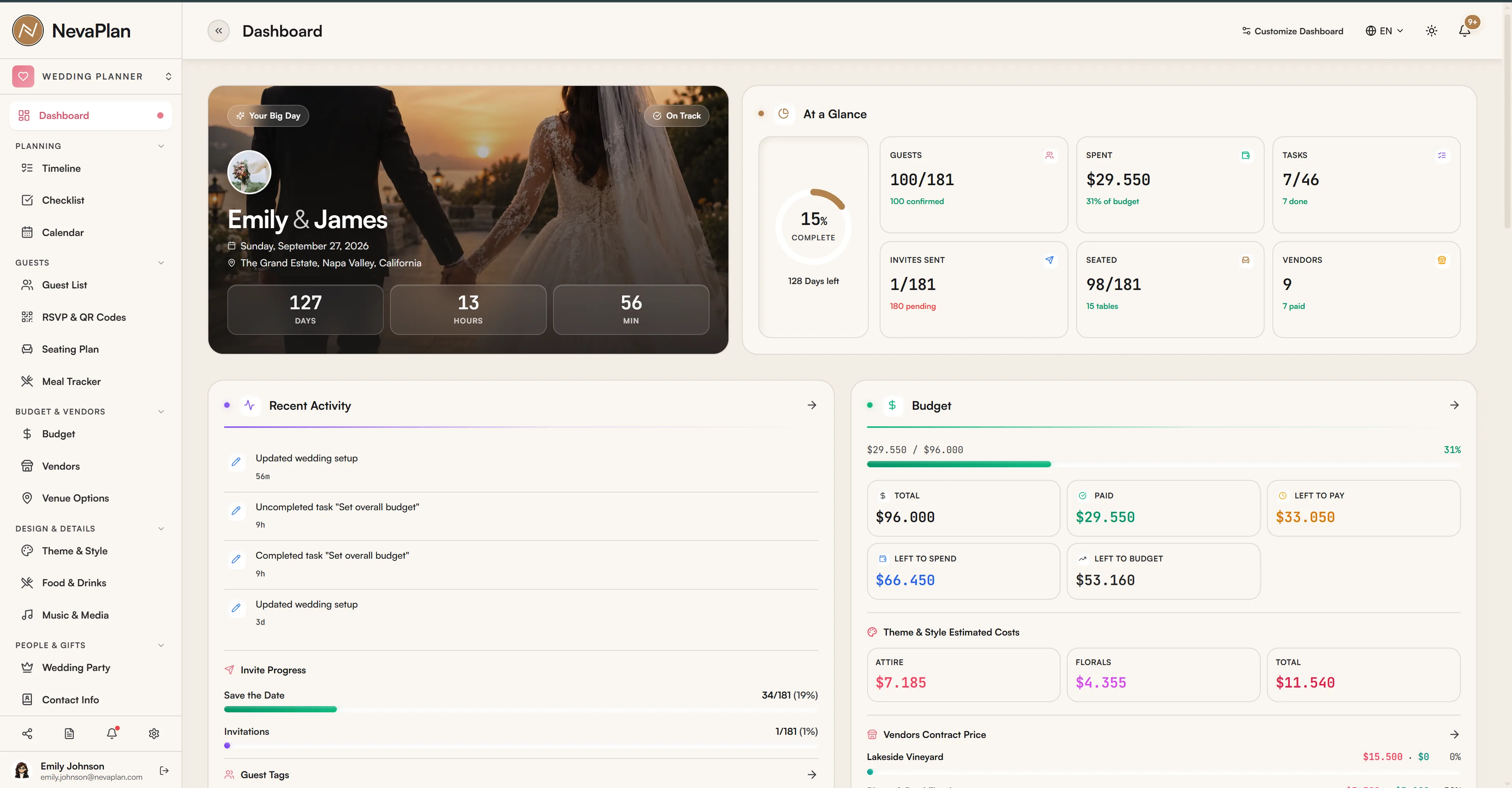
From top to bottom there are three sections: the countdown, the stat cards, and the detailed charts and lists.
The countdown card
At the very top. It shows your names, the location, and a live count of the days / hours / minutes / seconds until your wedding. Behind it sits the hero photo you uploaded in Settings, with the couple photo in the center.
After your wedding date passes, this card disappears — there's no "X days since" message, the block is simply hidden. You can still access all your data anytime; only the countdown is visually removed.
Top stat cards
Four cards side by side:
- Total Guests — total number of guests
- Confirmed — guests who marked "Attending" in their RSVP
- Invites Sent — number of invitations you've sent
- Total Budget — the total budget you set in Settings
Just below is the "At a Glance" summary — six small metrics on one line: Guests / Spent / Tasks / Invites Sent / Seated / Vendors.
Charts (Analytics)
The middle of the page is filled with pie and line charts. There are seven:
- Expense Distribution — spending per category (pie)
- Spendings Overview — monthly and cumulative spending (line + area)
- Vendors Contract Price — contract amount per vendor (bar)
- RSVP Distribution — Attending / Not Attending / Pending split (pie)
- Guest Tags — guest distribution by tag
- Save the Date / Invitations — send status
- Attendance — Arrived / Not Arrived / No Show (meaningful after the wedding)
If this block clutters your screen, you can collapse it with the Hide Analytics button at the top right; Show Analytics brings it back. Your preference is remembered in the browser.
List widgets
Scroll down and you'll find nine different lists — each turns the dashboard into a kind of "to-do hub":
| Widget | What it shows |
|---|---|
| Tasks Due Today | Timeline tasks due today |
| Upcoming Deadlines | Approaching deadlines |
| Overdue Deadlines | Past-due, still-incomplete items |
| Checklist Progress | Completion % of your wedding-day and packing lists |
| Honeymoon Budget | Planned vs spent on the honeymoon |
| Financial Supporters | People contributing money, and their amounts |
| Menu Finalization | Which food categories have final selections |
| Recent RSVP | The latest guests to respond |
| Recent Activity | Recent changes (who, what, when) |
When a list is empty you'll see polite messages — "No tasks due today", "No upcoming deadlines", "No RSVP responses yet". These are not errors, just the current state.
Customize your dashboard
The Customize button at the top right (a sliders icon) opens the Dashboard Customizer, where you choose which widget groups appear and reorder them. For example, if you're not planning a honeymoon, you can hide the Honeymoon & Supporters group. Your hidden-widget and ordering preferences are saved to your account.
If you want to see a lot at once, keep Show Analytics on; if you prefer a clean view on a small screen, turn it off. Keeping it off on mobile makes reading easier.
A quick action from the dashboard
The Import Guests from CSV button also appears at the top right of the dashboard. If you're building your guest list for the first time and have a ready-made Excel/CSV file, you can upload it here in one click — no need to go to the Guest List page. For the CSV format and how invalid rows behave, see Build your guest list.
How often does data update?
Dashboard data is cached on the server for 2 minutes. When you add a guest or an RSVP comes in, the numbers on the dashboard may not update immediately — you'll need to refresh or wait two minutes. Critical things like RSVPs also arrive as real-time notifications, so you won't miss them.
FAQ
Check that the wedding date is correct under Settings → Wedding Setup. If the date is right, your device's clock or time zone may be off. The countdown is calculated from your browser's local time.
Dashboard data is cached for 2 minutes. A guest you just added shows up in the stat cards after a few minutes. Refreshing the page updates everything instantly.
The "Attendance" chart (Arrived / Not Arrived / No Show) is most meaningful on and after the wedding day. Widgets like "Tasks Due Today", "Upcoming Deadlines", and "Menu Finalization" are active during planning. You can hide any widget you don't want from the Dashboard Customizer.
A collaborator you've invited sees the widgets for whichever modules you granted VIEW or EDIT access to. For example, if you didn't grant Budget access, the "Spendings Overview" chart won't appear on their dashboard.