The Calendar view answers the "what's happening this month?" question by pulling dated items into a single month grid: timeline tasks, payment due dates, and any custom deadlines you've added.
What appears on the calendar
The calendar draws from three sources, each one a toggle you can turn on or off:
- Timeline — tasks that have a deadline date (from your timeline)
- Budget — payments that have a date (from Budget)
- Deadlines — standalone date markers you create right here on the calendar
Each item is color-coded so you can read the month at a glance:
- Priority color — timeline tasks (Very High through Very Low, the same colors as the Timeline page)
- Green — budget payments
- Violet — deadlines
By default the calendar shows Timeline and Deadlines. The Budget layer starts off — flip it on with the "Budget" toggle when you want payment dates in the mix.
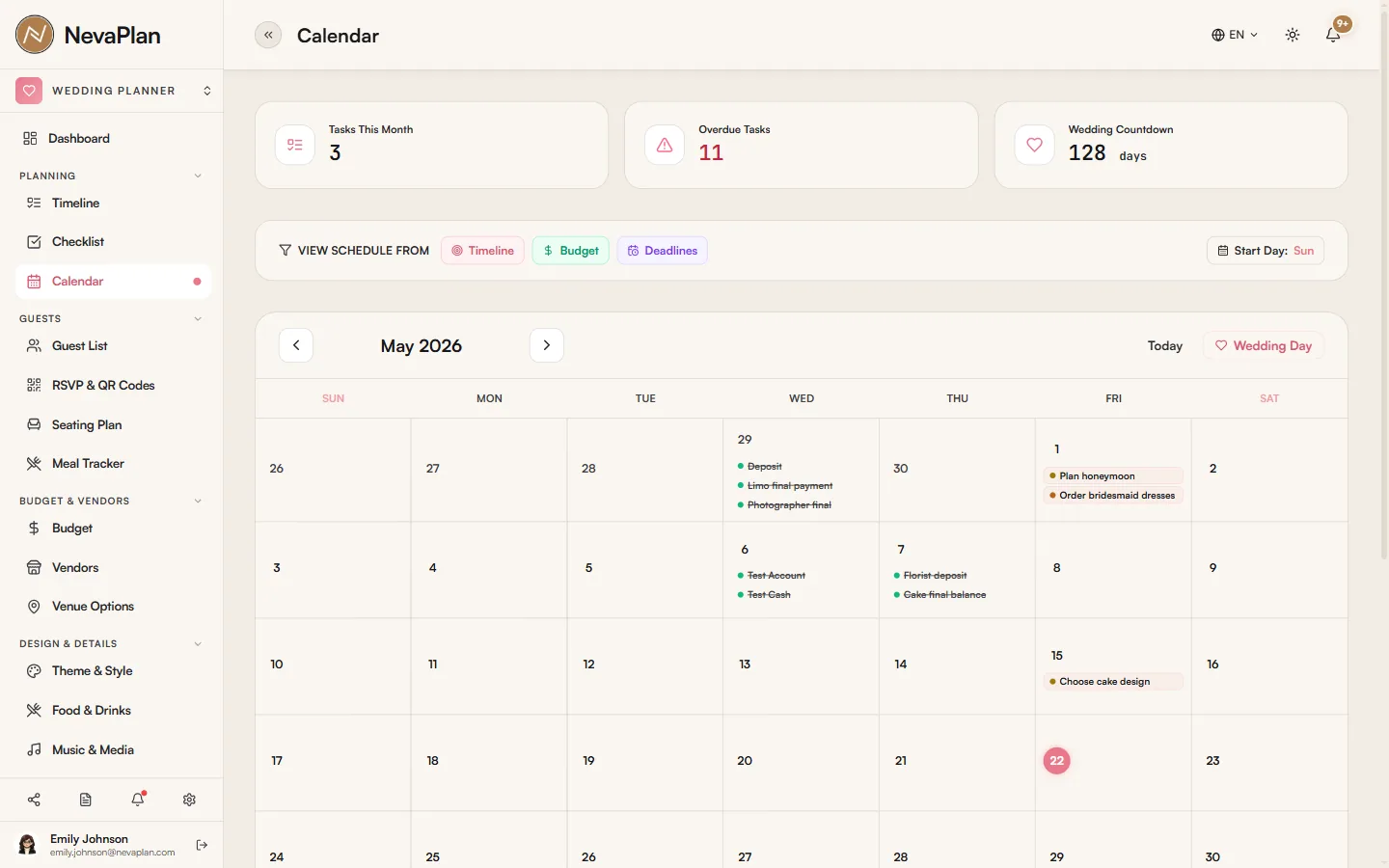
The toolbar
Across the top:
- Tasks This Month / Overdue Tasks / Wedding Countdown — three quick stats
- View Schedule From — the three source toggles (Timeline / Budget / Deadlines)
- Start Day — switch the week to start on Sunday or Monday
- ‹ › — previous / next month, plus Today and a Wedding Day jump
Clicking a day
Click any date to open its detail panel (a side panel on desktop, an inline detail on mobile). The panel lists everything on that day — tasks, payments, and deadlines — and lets you:
- Check off a deadline — mark it done (or undo)
- Delete a deadline
- Add a deadline — type a title and it's created on that date
Deadlines are the one thing you add from the calendar itself. Tasks live in Timeline and payments live in Budget — to add those, go to their home modules. Use a calendar deadline for a quick, date-pinned reminder that doesn't belong to either ("call venue to confirm headcount").
Wedding day marker
Your wedding date is highlighted in the grid as a special day, and there's a Wedding Day button in the toolbar that jumps you straight to that month — handy when you're counting backward from the big day.
The calendar mirrors data from its source modules. A timeline task shown here is the same record as in Timeline — there's no separate copy. Deadlines, however, are calendar-native: delete one here and it's gone.
Next steps
If the month looks dense and you want to slim it down:
- Reschedule overdue timeline tasks — many "stuck on red" entries clear once the dates are realistic
- Toggle off the layers you're not reviewing — leave just Timeline for a planning pass, or just Budget when you're chasing payments
FAQ
The calendar pulls from Timeline tasks, Budget payments, and calendar deadlines only. Checklist items (the wedding-day and packing lists) aren't plotted on the month grid — they live in Checklists, which is organized by list rather than by date.
Not currently. There's no .ics export or two-way sync with external calendars yet. For now the calendar lives inside NevaPlan — share a screenshot with collaborators or rely on the in-app reminders.
A timeline task is a full prep item — it belongs to one of the 8 timeline periods and has a priority and an owner. A deadline is a lightweight, date-only marker you drop on the calendar for a quick reminder. Use tasks for the plan, deadlines for "don't forget this on this day".
They see the items they have permission to see. A collaborator with no access to Budget won't see budget payments on the calendar; everything else follows their module-level permissions in Sharing.