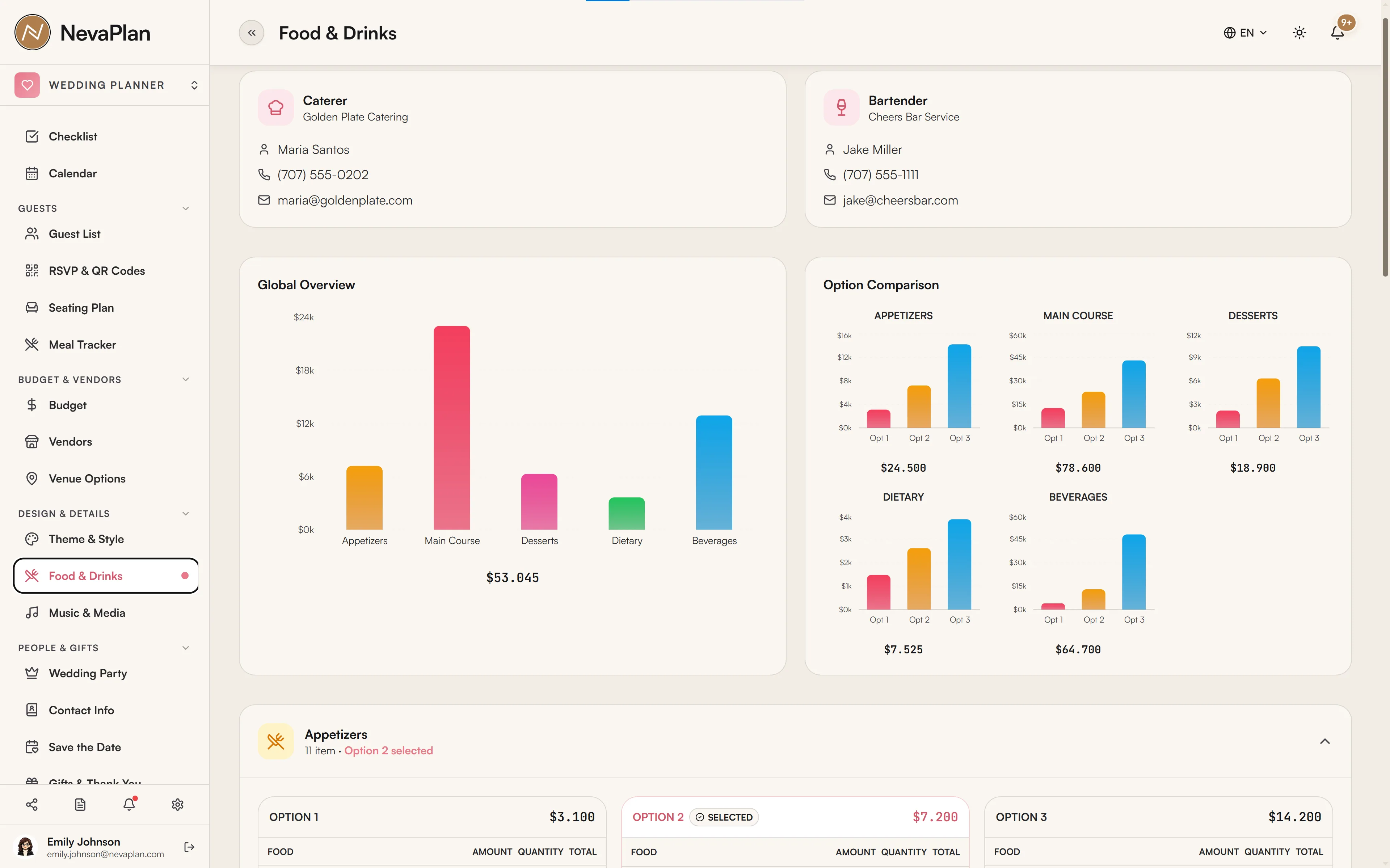
The Food & Drinks page is where you design the menu itself — the dishes and drinks you're choosing between, with prices. It's the planning side of catering. It's distinct from Meal Tracking, which counts how many guests picked each meal on the day; this page is about deciding what's on the menu in the first place.
How it's organized
Food & Drinks is split into five categories:
- Appetizers
- Main Course
- Desserts
- Dietary (vegetarian/vegan/special-diet alternatives)
- Beverages
Within each category you build up to three options — think of them as competing tasting menus. For example, under Main Course you might have Option 1 (beef + salmon), Option 2 (lamb + chicken), Option 3 (a vegetarian-forward spread). You compare them, then select one option per category as the one you'll actually serve.
Adding menu items
Inside any option, press Add Item. The form:
| Field | Required | Note |
|---|---|---|
| Category | Yes | Appetizer / Main Course / Dessert / Dietary / Beverage |
| Option | Yes | 1, 2, or 3 — which tasting menu it belongs to |
| Name | Yes | e.g. "Beef Tenderloin", "Sparkling Elderflower" |
| Amount | No | Price per unit |
| Quantity | No | Defaults to 1 |
| Description | No | Plating notes, ingredients, allergens |
Each option's items sum into that option's cost, so you can see at a glance which menu fits the budget.
Selecting an option
When you've decided, press Select on the winning option in that category. Selecting one option marks it as your final menu for that category; you can Unselect to reopen the choice. The page only counts the selected option's cost toward your totals, so the comparison stays honest.
The overview charts
Two views help you read the whole menu:
- Global Overview — total food & drinks cost from your selected options across all five categories
- Option Comparison — per-category mini charts comparing the cost of Option 1 vs 2 vs 3
These update as you add items and switch selections, so you can answer "what does the menu cost if we go with Option 2 for mains?" instantly.
Your caterer and bartender
At the top of the page, cards show your Caterer and Bartender — pulled from your Vendors list (the Caterer and Bartender categories). If you haven't added them yet, there's a link to the Vendors page to do so. Keeping the menu and the people who'll execute it on the same screen saves a lot of back-and-forth.
Build the Dietary category in parallel with your main menu, not as an afterthought. Even a small wedding usually has a vegetarian, a vegan, and an allergy or two. Having a planned dietary option means the kitchen isn't improvising on the day.
How this connects to Meal Tracking
The two food pages work as a pair:
- Food & Drinks (this page) — you decide what the menu is (Option 2 mains: lamb + chicken)
- Meal Tracking — guests pick from your options via RSVP, and you get the counts to hand the caterer
So design the menu here first, then the meal options your guests choose from on RSVP reflect what you've planned.
Next steps
- Set up meal options for RSVP so guests can choose
- Roll the selected menu cost into your budget
- Confirm your caterer and bartender as final choices
FAQ
Food & Drinks is menu design — the dishes you're choosing between, with prices, organized as up to three options per course. Meal Tracker is the headcount — how many guests selected each meal via RSVP, for handing to the caterer. Plan the menu here; count the plates there.
Three is enough to compare a premium, a mid, and a budget menu (or three different styles) without overwhelming the decision. You ultimately select one option per category to serve. There's no need to fill all three — one is fine if you already know what you want.
No — Amount and Quantity are optional. But entering them is what powers the cost comparison and the budget totals. If you leave prices blank, the page still tracks the menu items; it just can't compare options by cost.
No — selecting an option is single-choice per category (it's the menu you'll serve). Selecting a new option replaces the previous selection. Use the three slots to compare, then commit to one.
You haven't added a vendor in the Caterer category yet. Use the link to the Vendors page to add your caterer (and bartender); they'll then appear at the top of this page.