Meal selections are the simplest piece of the wedding planning puzzle to underestimate. Get the count wrong and the kitchen runs short; miss an allergy and someone goes hungry — or worse. The Meal Tracker module exists to make sure you hand the caterer one clean list.
What the page shows
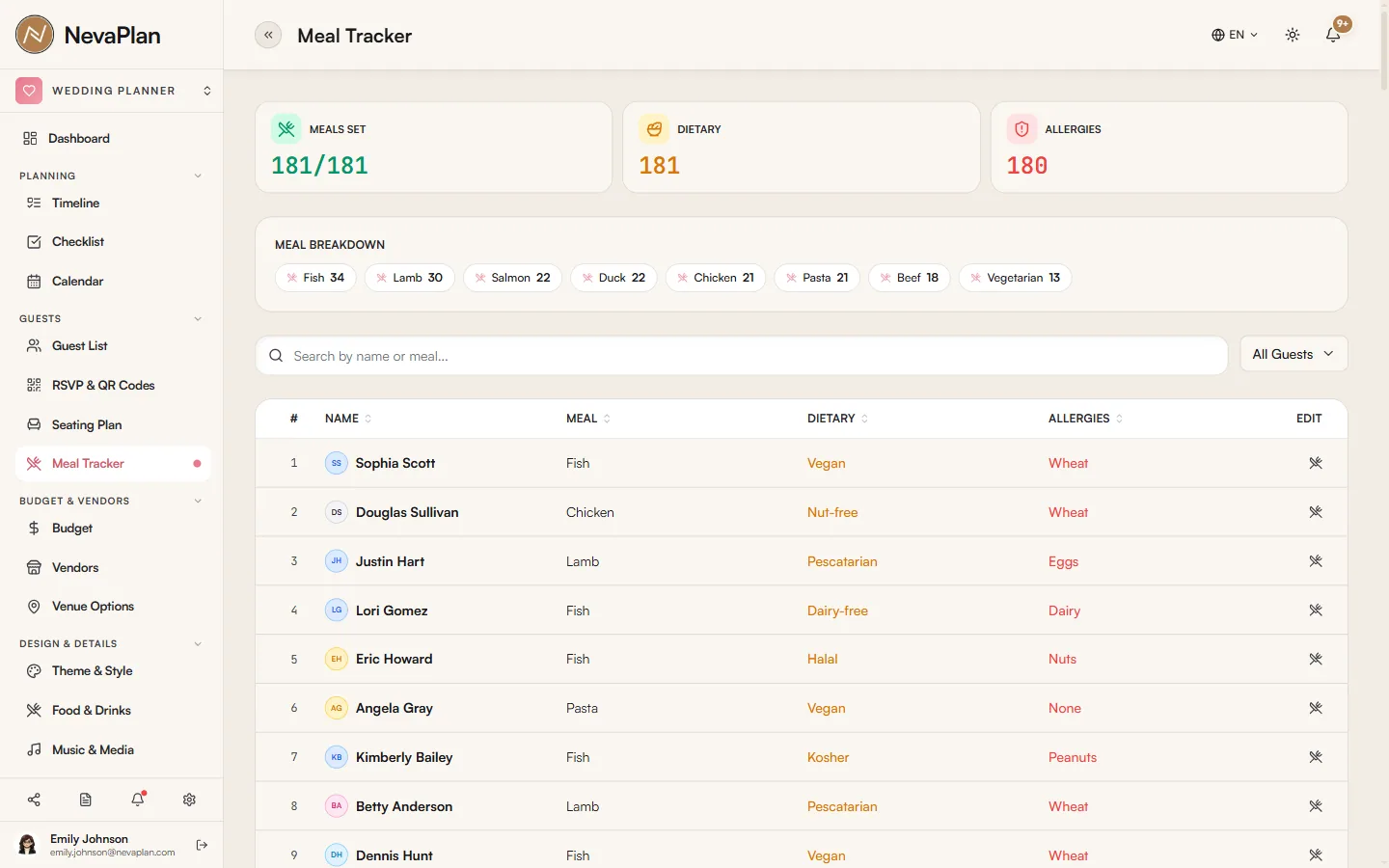
The Meal Tracking page has three sections:
- Meal options — the choices guests can pick from (Chicken, Beef, Vegetarian, etc.)
- Selection summary — total guests who picked each option
- Dietary & allergy list — every guest who flagged a restriction, with the note
If you've enabled RSVP, most of this fills in automatically as guests respond. You can also enter selections manually for guests who reply by phone or in person.
Defining meal options
Press Add Meal Option to define each choice. Each option needs:
- Name — what guests see (e.g. "Beef Tenderloin")
- Description — short helper text (e.g. "with red wine reduction, mashed potato")
- Icon — optional, picked from the icon picker
Two to four options is the sweet spot. More than four overwhelms guests on the RSVP page and most caterers struggle to plate efficiently anyway.
Add a Vegetarian and a Kids Meal option even if you don't think you need them. About one in five RSVP forms gets a "can you accommodate…?" request and having the option already listed avoids back-and-forth.
Selection summary
The summary card breaks down the count per option:
Beef Tenderloin    32
Salmon              28
Vegetarian          11
Kids Meal            6
No Selection        4
No Selection counts guests who confirmed Attending but haven't picked a meal. Chase these down before the final headcount deadline — typically two weeks before the wedding.
Dietary restrictions and allergies
Separate from the main meal choice, RSVP collects free-text fields for:
- Dietary — vegetarian, vegan, kosher, halal, gluten-free, etc.
- Allergies — peanut, shellfish, dairy, etc.
These show up in a list at the bottom of the page, with a colored badge for severity:
- Red — anything containing "allerg" or "intoleran" — the caterer must see these
- Amber — preferences and dietary practices
- Gray — informational notes
You can edit any of these in place; changes save automatically.
Don't merge allergies into the main meal description. A guest who picks "Beef Tenderloin" but has a shellfish allergy still needs the kitchen to be careful with cross-contamination on shared surfaces. Keep the two pieces of data separate so they reach the right people.
Caterer hand-off
Two weeks before the wedding, your caterer will ask for the final count. Press Export Caterer Report (PDF) for a ready-to-send document. The PDF includes:
- Total headcount (confirmed + plus-ones)
- Count per meal option
- Full list of dietary restrictions with the guest name and table assignment
- Full list of allergies, highlighted
If the caterer wants CSV instead (some prefer to plug it into their own system), use Export CSV — same data, just machine-readable.
Per-table view
If you've built a seating plan, switch to Per-Table view to see meal counts per table. This is how the caterer plates: tray by tray. A table with five Beef and three Salmon becomes one tray with eight plates, plated in the right order.
Updating after the deadline
Late changes happen — a guest gets sick, a plus-one switches, the venue offers an upgrade. Edit the meal selection directly on the guest's row in the Guest List or on this page. The summary recalculates instantly. If you've already exported the PDF, re-export and re-send.
Next steps
Once meals are locked in:
- Finalize the seating plan — caterer wants meal counts per table
- Confirm allergies with the venue or kitchen staff in person, ideally during the final walkthrough
FAQ
Edit their meal selection on the Guest List and pick No Meal. They'll still count in the headcount (the meal isn't refunded) but they won't appear in the meal count for plating.
Yes — when a guest selects a plus-one count above 0 on RSVP, an extra meal-selection block appears per companion. The plus-one's selection counts independently in the summary.
If everyone gets the same meal (or family-style service), you can skip the meal options entirely. Use the Dietary & Allergy notes to flag exceptions to the kitchen, and treat the headcount as the only number that matters.
Yes. Existing responses are unaffected, but the new option is visible to anyone who responds (or updates their response) from that point on. If you want existing guests to switch, you'll need to ask them directly.
No — this page reads live. The moment a guest submits or you edit a row, the counts update without a refresh. Useful in the final week when numbers are still moving.