The seating plan is the puzzle every couple wrestles with in the final weeks. Wedding Planner makes it tactile: create your tables, drag your confirmed guests to seats, and the system flags capacity overruns and missing meal info before they become a wedding-day problem.
Before you start
The seating module is most useful once RSVPs are coming in. You can build empty tables anytime, but placing guests only makes sense after you know who's attending. If you've enabled RSVP, focus on guests with Attending status — they're the only ones who appear in the unassigned pool by default.
The page layout
The Seating page is split into two columns:
- Left — Tables: every table you've created, each with its capacity, current count, and the names already seated
- Right — Unassigned guests: confirmed guests who don't have a table yet, with a search box and tag filters
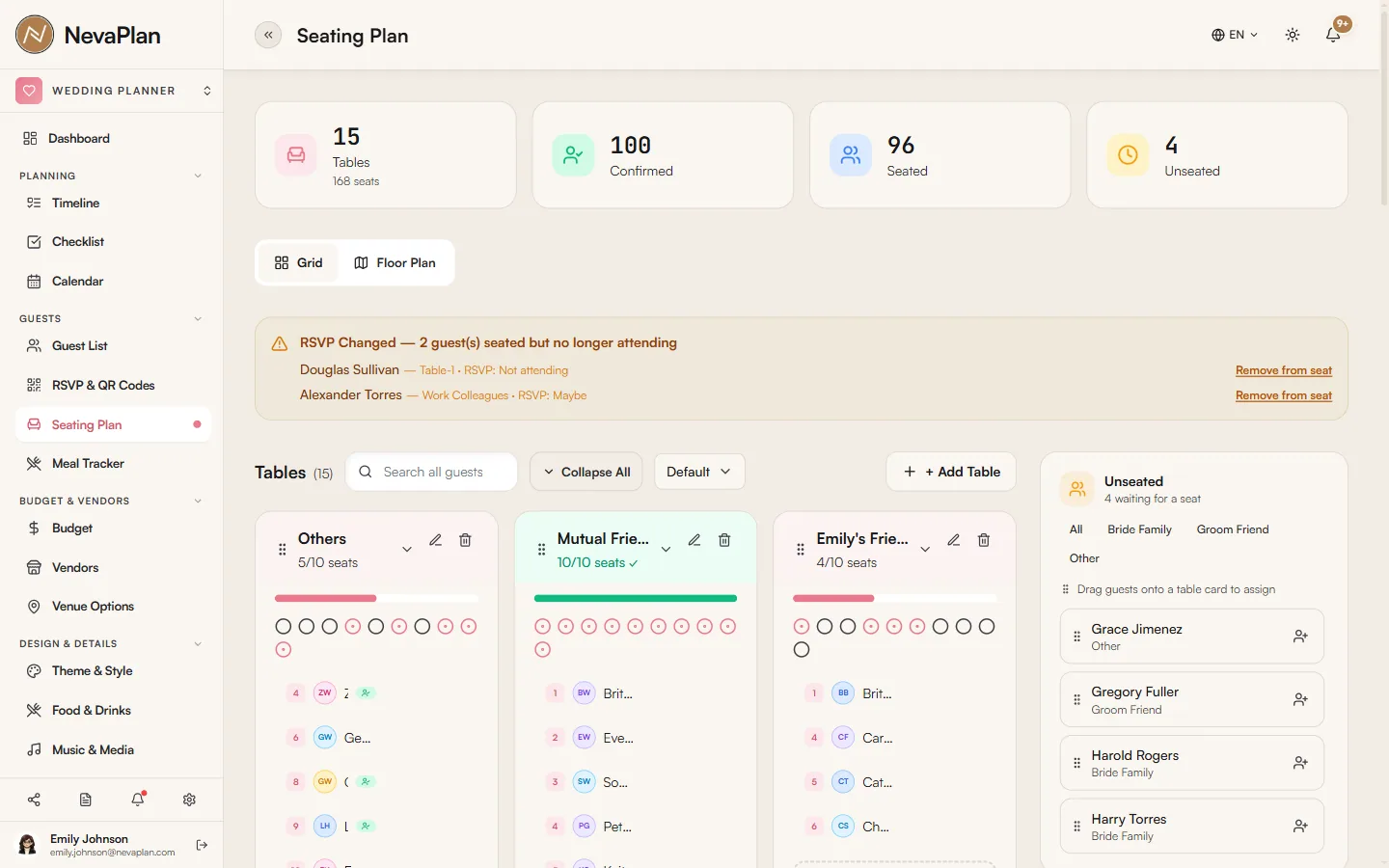
Adding tables
Press Add Table at the top of the page. The form:
| Field | Required | Note |
|---|---|---|
| Table Name | Yes | e.g. "Table 1", "Family Table", "Sweetheart Table" |
| Capacity | Yes | Number of seats (typically 6, 8, or 10) |
| Shape | No | Round / Rectangular / Custom — for the printable diagram |
| Notes | No | e.g. "Near the dance floor", "Vegetarian only" |
The most common setup is round tables of 8 or 10. If you don't know yet, use 8 — most venues default to that and you can adjust per table later.
A Sweetheart Table for the couple (capacity 2) and a Head Table for the wedding party (capacity 6–10) are conventional. Create those first, then add reception tables numbered sequentially.
Assigning guests
There are two ways to put a guest at a table:
- Drag and drop (desktop) — grab the guest name from the right column and drop it onto a table
- Click to assign (mobile) — tap a guest, then tap the target table from the picker
If a guest has a Plus One, both seats are reserved with one assignment — you don't have to drag the companion separately.
To move a guest, just drag them from one table to another. To unassign, drag back into the right column (or use the × next to their name in the table view).
Capacity warnings
If you try to seat more people than a table holds, you'll see:
Table is full — adding {{name}} would exceed the {{capacity}}-seat limit. Increase capacity or pick a different table.
The system will still let you save — it's a warning, not a block. You may want to over-seat by one to fit a late RSVP. But the table card turns red until the count is at or below capacity.
Filtering the unassigned pool
When your list is long, the filters above the right column help:
- Search — by name
- Side — Bride / Groom / Mutual
- Tag — the tags you applied on the guest list (Family, College, etc.)
- Group — predefined groups
- Meal — useful at the end, when you want to check meal counts per table
A combined filter like "Bride side + Family + Confirmed" quickly isolates the group you're trying to seat together.
What the printable view shows
Press Export PDF for a wedding-day-ready printout. The PDF includes, for each table:
- Table name, shape, and capacity
- The seated guest list, alphabetical
- Their meal selections (so the caterer knows what to plate)
- Any per-guest notes (allergies, dietary restrictions)
Hand a printed copy to the venue coordinator and the caterer. They love this.
The PDF reflects the current state of the seating plan. If you make changes the morning of the wedding, re-export and re-print. There's no version history — the latest save replaces the previous one.
When guests cancel last-minute
If a guest with a confirmed RSVP changes to Not Attending or Maybe, they're not removed from their table automatically — the assignment stays so you can decide whether to re-seat or leave the seat open. To unassign them in bulk, use the Unassign No-Shows button at the top of the page; it removes everyone whose latest status isn't Attending.
Next steps
After the plan is settled:
- Confirm meal counts per table — your caterer needs this
- Re-check the guest list — any missing tags or contact info before the day
FAQ
Yes. The "Confirmed only" toggle is on by default but you can turn it off to show all guests, including Maybe and Pending. Just remember that pending guests may not actually attend, so build the layout with confirmed ones first.
There's no multi-select drag yet. Move guests one at a time. The fastest way is to filter the right column to that group, then drag each name across.
Technically yes, but the last save wins and the system doesn't merge concurrent moves. To avoid undoing each other's work, have one person finalize the seating during a single sitting.
Right now it only affects the icon in the PDF export — round tables show as circles, rectangular as bars. It doesn't change capacity logic or rendering elsewhere. Pick whichever helps the venue staff recognize each table at a glance.
Create one table per banquet section (e.g. "North Banquet Left", "North Banquet Right") with the seat count for that section. Treat each section as a logical table. The PDF will list each section separately, which is what the caterer needs.