Wedding vendors are where most of your budget goes. The Vendors module is built around two ideas: compare options before you commit, and never enter a payment twice. Once you mark a vendor as your final choice and add a payment on the Budget page, everything lines up automatically.
How vendor categories work
Vendors are organized by category — Venue, Catering, Photography, Music, Florist, and so on. You can add as many candidates as you want per category while you're shopping. When you decide, you mark one vendor in that category as your Final Choice — the others stay on file as "considered but not chosen".
The categories aren't fixed — type a new one when adding a vendor and it shows up in the dropdown for next time.
Adding a vendor
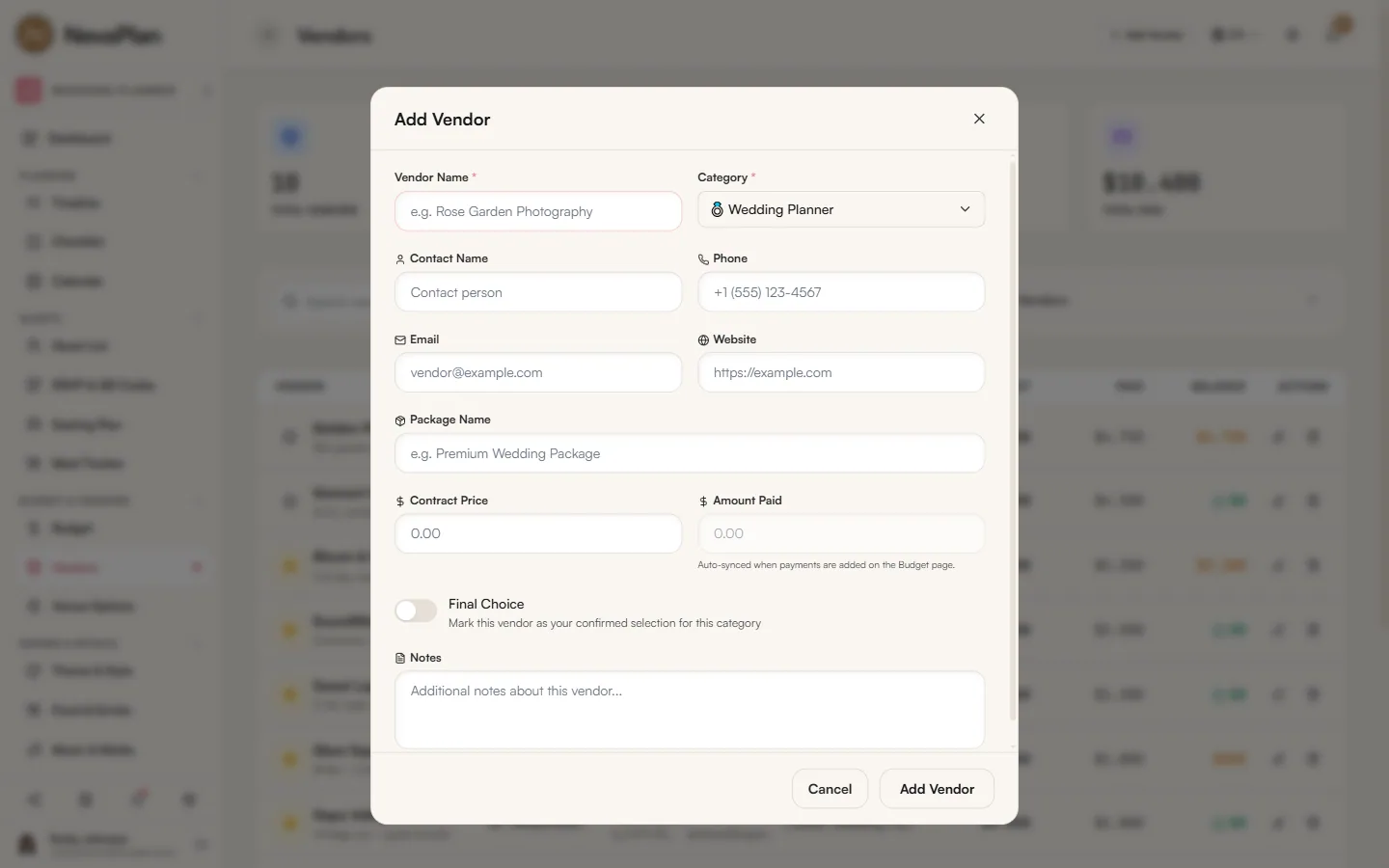
Press Add Vendor. The form covers everything you'd want to track during the comparison phase:
| Field | Note |
|---|---|
| Name | Vendor or company name |
| Category | Venue, Catering, Photography, Music, etc. |
| Contact Person | Who you talk to (sales rep, owner) |
| Phone / Email / Website | Reachable details |
| Contract Price | The quoted or contracted total |
| Deposit | How much you've put down (if any) |
| Notes | Quote highlights, pros and cons |
The Phone and Email fields become tap-to-call and tap-to-email on mobile. Useful when you're driving back from a venue tour and want to follow up.
Comparing quotes
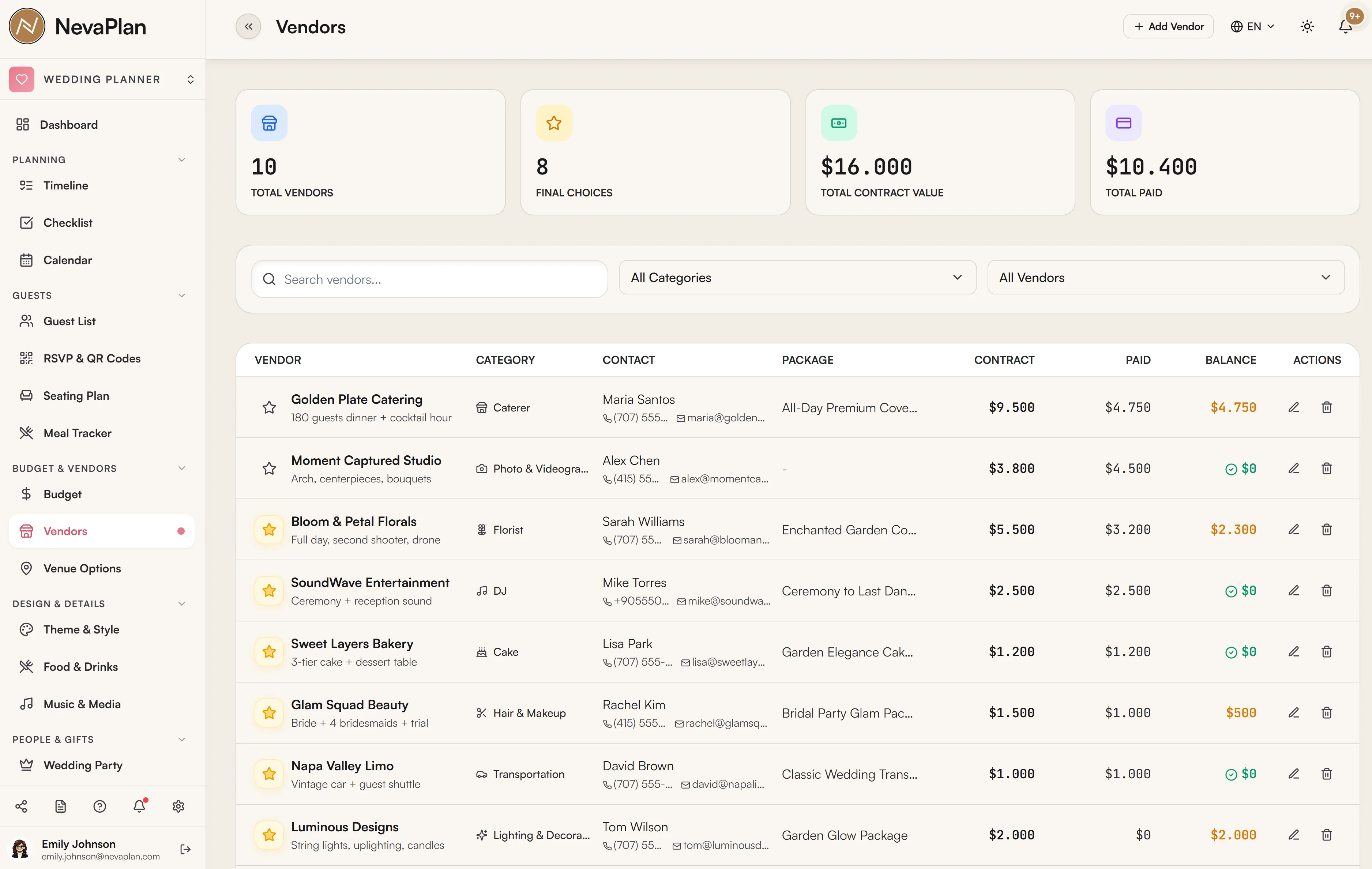
On the Vendors list, sort by category to see your options side by side. Each card shows:
- Name + contact
- Contract price
- Paid so far (auto-synced)
- Final-choice star (filled if chosen)
- A short note
For larger comparisons — three caterers, for example — open each card's notes and jot down the differences (per-head price, menu inclusions, gratuity policy). The notes field doesn't have a character limit, so you can paste in the relevant lines from each quote.
Marking a final choice
When you decide, open the vendor card and toggle Final Choice. Two things happen:
- The card gets a colored badge: "Final Choice"
- Any other vendor in the same category loses its Final Choice automatically — only one per category
You can change your mind. Toggling another vendor in the same category as Final Choice will quietly demote the previous one.
If a vendor is your Final Choice and you've already added payments to them, don't delete the vendor. Doing so will sever the link between those payments and any vendor — the payments stay in the budget, but the "paid amount per vendor" stat resets to zero. Instead, demote them (uncheck Final Choice) and keep the record for history.
Paid amount — auto-sync from Budget
The Paid number on each vendor card is not editable by hand. It updates only when you add a payment on the Budget page and link it to that vendor. The form hint says:
Auto-synced when payments are added on the Budget page.
This prevents the classic double-entry mistake — adding a payment in Budget and also updating the vendor's paid amount, ending up with twice the spending.
The arithmetic is:
Remaining = Contract Price − Paid
When Paid reaches Contract Price, the vendor card shows a quiet "Fully Paid" badge.
Filtering and viewing
When the list grows, three filters help:
- Category — show only Catering, only Music, etc.
- Status — Final Choice only / Under Consideration / All
- Has Outstanding Balance — vendors where Paid < Contract Price
The last one is the closest thing to a "what do I still owe?" report. Combined with sorting by deadline (the date you've agreed to pay), it answers most cash-flow questions during the planning months.
Linking vendors to other modules
Vendors aren't isolated. Two integrations matter:
- Budget — every payment can be tagged with a vendor; the paid total syncs back to the vendor card
- Timeline — when you add a task like "Final headcount to caterer", you can attach the vendor to it; on the timeline, hovering the task shows the vendor card so the contact info is one tap away
If you assign a vendor to a Timeline task and later delete the vendor, the task survives but the link is cleared (the task no longer shows a vendor badge).
Florist and attire — a special case
If you're using the Theme & Style page to plan flowers and outfits, you don't manually create florist line items in the budget — the Theme module does that for you. The Vendors module is still the right place to record the florist company and the bridal shop. Use Vendors for the relationship and Theme for the line items. The Budget side automatically gets the line items as Florals and Wedding Attire categories. See Choosing your theme and style.
Next steps
Once your vendors are entered and final choices marked:
- Add the corresponding payments in Budget — paid amounts will flow back here
- Add timeline tasks tied to each vendor — final headcounts, deposits, walkthroughs
FAQ
No — that's the whole point of the badge. Only one vendor per category can be marked Final Choice; selecting another in the same category demotes the previous one. If you genuinely have two vendors splitting a category (e.g. two photographers covering different parts of the day), create separate categories ("Lead Photographer", "Second Photographer").
To prevent double-counting. Paid is reconciled from payments added in Budget. If the number is wrong, find the matching payment in Budget — chances are it's missing or attached to a different vendor.
Demote them (uncheck Final Choice), add a note explaining why, and select a replacement vendor and mark it as Final Choice. Don't delete the original — keeping the record helps you remember which leads you'd already eliminated.
Yes, if you've granted them EDIT access on the BUDGET_VENDORS module under Sharing. With VIEW access they can see vendor cards but not change them.
The vendor's Paid amount drops by the deleted payment. The vendor record itself stays — only the payment link is removed.