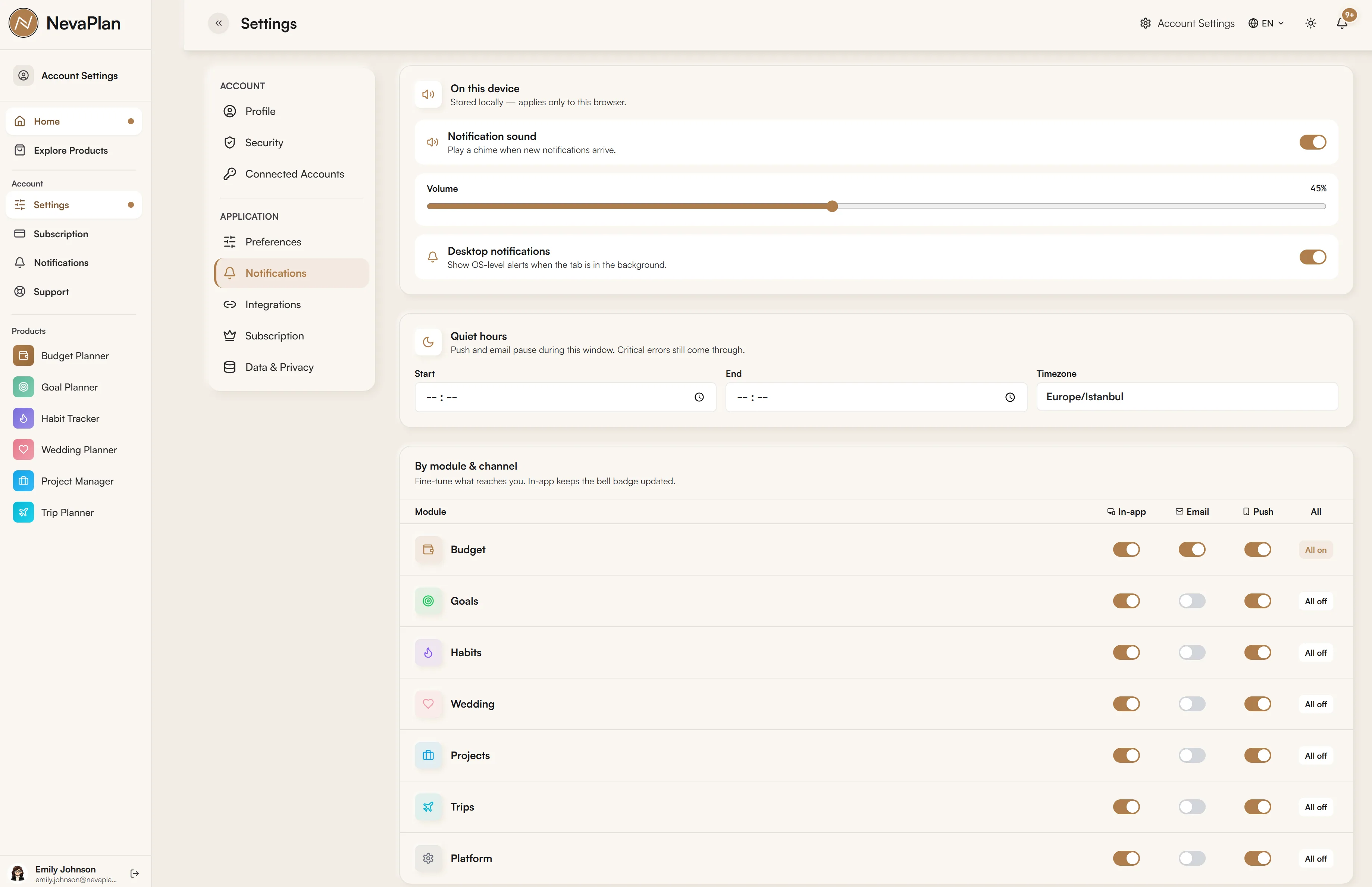
NevaPlan uses three different notification channels, and you can turn each on or off per module. This way you only receive the notifications you want, on the channels you want.
The three notification channels
| Channel | Where it appears |
|---|---|
| IN_APP | Inside the app, on the bell icon at the top right |
| To your account email address | |
| PUSH | As a mobile app notification |
The three channels work independently. The same notification can arrive as both email and push — if both are on.
How to reach the settings
Click your profile icon in the top menu and go to Notification Preferences. Each module shows the 3 channels as separate toggles. For Wedding Planner you can manage all notifications at once from the WEDDING_PLANNER section, or make detailed choices per notification type.
Wedding Planner-specific notifications
The notification types coming from the Wedding module:
- Countdown Milestones — automatic notifications at 30, 14, 7, 3, 1, and 0 days before the wedding
- RSVP Deadline Reminders — at 7, 3, 1, and 0 days before the RSVP deadline, and 1 day after
- New RSVP Response — when a guest responds
- Invite Accepted — when someone you invited accepts and joins as a collaborator
- Collaborator Removed — when a collaborator is removed from the wedding
Each notification type has 3 channel options — manage them individually, or turn off the entire WEDDING_PLANNER module.
Quiet hours
To receive no notifications between certain hours, set Quiet Hours:
- Start time — when quiet begins (e.g. 10:00 PM)
- End time — when quiet ends (e.g. 8:00 AM)
- Timezone — your own time zone
During quiet hours, push and in-app notifications are queued and delivered all at once when quiet ends — none are lost. Email isn't affected by quiet hours; it always arrives instantly.
Notifications intensify in the month before the wedding. To avoid distraction at night, keep quiet hours of 10:00 PM–8:00 AM on, with everything on during the day. If something is critical, email arrives immediately anyway.
Owner vs collaborator
Every user sets their own notification preferences. Even if your partner is linked to your account as a collaborator, their preferences are tied to their own account. If you turn something off but they have it on, it goes to their channels — and vice versa.
So you might not receive an email for a given RSVP response while your partner does.
If you're not getting notifications
Three possible reasons:
- All channels for the module are off — check Notification Preferences
- You're within quiet hours — check that the time zone is set correctly
- No system permission for push — you didn't grant notification permission in the mobile app; enable it in your phone's settings
If email isn't arriving, also check your spam folder.
FAQ
Yes, you can turn off all 3 channels for each module. But for an upcoming wedding I'd recommend keeping at least the email channel on — countdown milestones and RSVP deadline reminders are critical developments, and it's safer not to miss them.
Six reminders in total: at 30, 14, 7, 3, 1, and 0 days before the wedding. Only one notification is generated per milestone per user — the same notification never arrives twice.
Delay. When quiet hours end, the notifications waiting in the queue are delivered. None are lost, only the timing is shifted. Email isn't affected by quiet hours.
If they're a collaborator, they receive notifications for the modules you granted them, according to their own preferences. Even if you turn it off, if they have it on, it goes to them — and vice versa. So in some cases you'll need to coordinate notifications with each other.
Cron jobs (the countdown notifications) are sent from the server, so they reference the server's time zone. Specifying your own time zone ensures a setting like "notify me at 8:30 AM" is delivered at the right time.