You won't usually be standing next to your guests when they respond to your invitation, so understanding the experience they're about to have is the next-best thing. This article walks through exactly what a guest sees when they open their personal RSVP link, and gives you a few things to mention when you share the link so it goes smoothly.
How a guest reaches the page
Your guest receives a link from you — by email, WhatsApp, or in person. It looks like:
nevaplan.com/rsvp/{your-event-code}?t={their-unique-token}
The token after ?t= is what tells the system who the guest is. Anyone with that exact URL can respond as that guest. There is no name search or login on the public page — a guest must open their personal link.
Brief your guests: "This link is just for you. Don't forward it to others — they should each get their own from us." If a guest loses theirs, they'll message you and you can resend with the Copy Link button on the Guest List.
Step 1 — The landing
When the link opens, the page shows:
- Your names, wedding date, and location (from your wedding setup)
- The custom RSVP Message you wrote
- The guest's name at the top — recognised automatically from the token
If the token is invalid or RSVP isn't enabled yet, the guest sees an error state rather than the form. If a guest reports "the link doesn't work," it usually means your Enable Public RSVP toggle is off or the event code was regenerated.
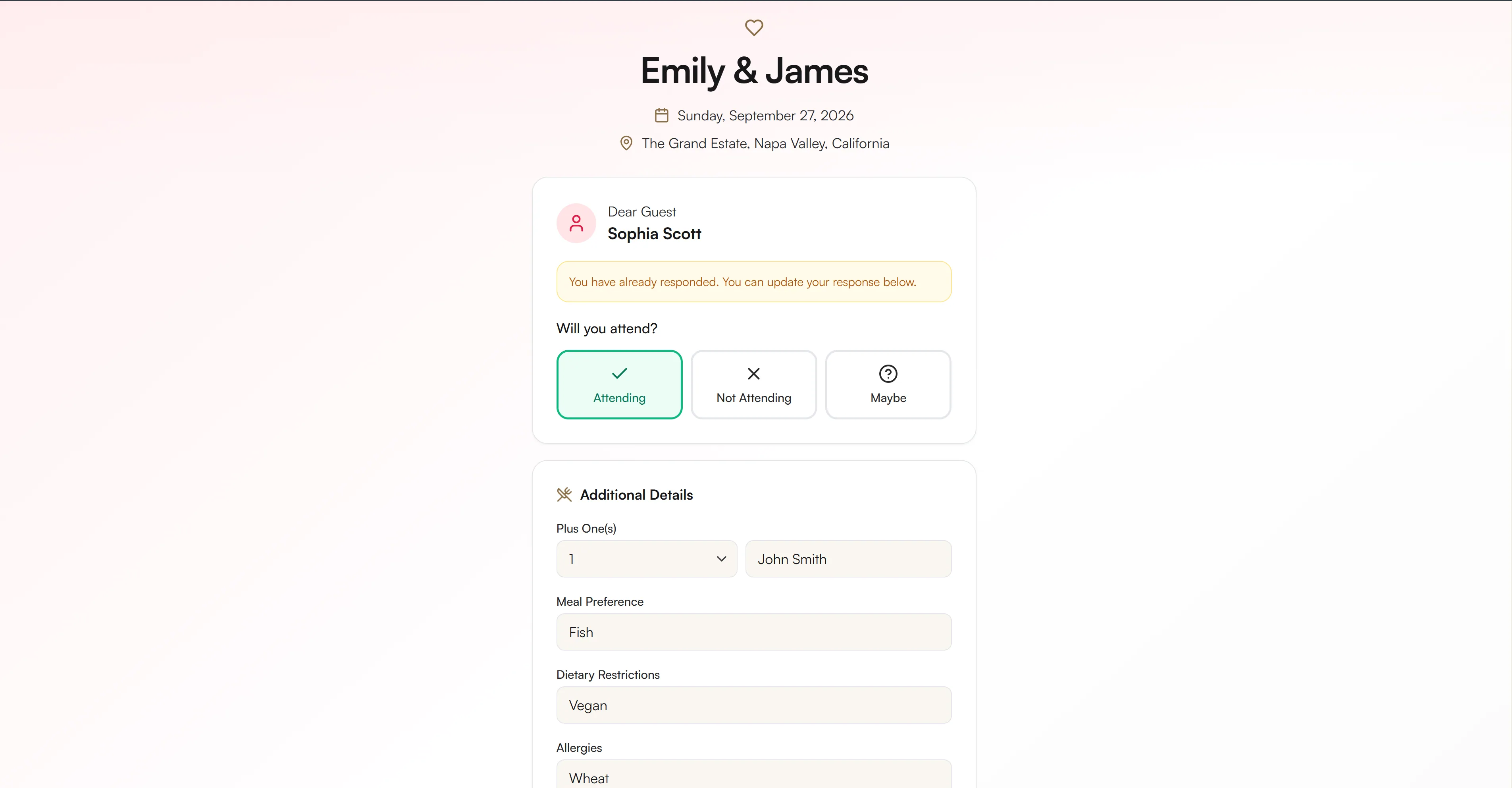
Step 2 — Choosing a response
The guest picks one of:
- Attending — yes, they'll be there
- Not Attending — no
- Maybe — unsure for now
Choosing Attending or Maybe reveals the rest of the form. Not Attending can be submitted right away — the system doesn't ask further questions, just confirmation.
Step 3 — The details (Attending / Maybe)
The form collects these fields:
| Field | What the guest sees |
|---|---|
| Plus-one count | A number, between 0 and 10 |
| Meal selection | The meal options you defined; one per attendee |
| Dietary | Free text (vegetarian, vegan, kosher, halal, etc.) |
| Allergies | Free text — flagged in red for your caterer |
| Note | Optional message for you |
If the guest brings a plus-one, an additional meal-selection block appears per companion. Brief your guests: the plus-one count includes spouses, partners, and children — there's no separate children field.
Your guests will appreciate clarity in your RSVP Message about plus-ones. If you're not accepting any, write that explicitly. If you've capped at 1, write "spouses/partners welcome, no children". Implicit rules get violated; explicit ones rarely do.
Step 4 — CAPTCHA
A small Cloudflare Turnstile widget appears before submission. Usually it solves itself in a second. Occasionally it asks the guest to confirm a simple prompt. This step prevents bot submissions on your guest list — it's not optional and the Submit button stays disabled until the CAPTCHA succeeds.
If a guest reports being stuck on the CAPTCHA, ask them to refresh the page and try a different browser. Mobile in-app browsers (Instagram, WhatsApp web view) sometimes block the widget — opening the link in their phone's actual browser fixes it.
Step 5 — Submission
On press of Submit, the guest sees a thank-you screen:
Thank you, {{name}}! Your response has been recorded.
You're notified through the in-app notification bell and (if enabled) email. The guest list updates in close to real time, though the dashboard summary cards rely on a short cache and may take a couple of minutes to refresh their visible numbers.
Step 6 — Changing the response later
Until you close RSVP, the same link works for the same guest as many times as they need. They reopen the link, see their previous response pre-filled, edit anything, and submit again. The latest submission replaces the previous one — there's no version history.
Brief your guests: "If anything changes — plus-one count, meal choice, attendance — just open the same link again and resubmit. No new link needed."
Step 7 — The photo-sharing link
On the thank-you screen, guests see a button to the photo-sharing page. This is your encouragement for them to upload pictures from the wedding day — they don't need an account, just their phone's camera roll.
What to tell your guests up front
A short message with the link goes a long way. Adapt this template:
Hi {{name}},
Our wedding is on {{date}} at {{venue}}. Please use this personal link to RSVP — it's only for you, please don't forward it: {{personal link}}
Plus-ones, meal choice, dietary notes — they're all on the form. You can come back and change your response anytime before {{deadline}}. Any questions, just message us.
Edge cases worth knowing
- A guest replies "didn't get the link" — check whether their email or phone is set on their guest record; if it is, regenerate and re-send via the Copy Link button
- A guest already responded but you can't see it — the dashboard cache may be slow; the guest list itself reflects the latest response immediately
- A guest wants to respond for their partner using one link — only the plus-one count and the second meal selection. The partner doesn't have an independent record unless you added them separately
Next steps
To go deeper into the couple-side mechanics:
- Set up RSVP and generate links
- Make sure each guest has an email or phone — so sending links is fast
FAQ
Check the guest list (not the dashboard cards). The list updates immediately on submission. The dashboard's stat cards use a short cache and may lag by a couple of minutes. If the guest list also shows nothing, ask them to try the link again — they may have hit the CAPTCHA error and abandoned the page.
The system won't send the link automatically, but you can still generate the personal URL on the RSVP & QR Codes page and share it over WhatsApp or in person. There's a built-in WhatsApp share that opens with a pre-filled message in multiple languages.
No. Each guest sees only their own response on their own link. The full guest list and RSVP summary are visible only to you (and any collaborators you've granted access).
The page detects the guest's browser language and uses NevaPlan's translation for the labels and buttons. Your custom RSVP Message stays in whatever language you wrote it. So a Turkish guest visiting an English-named couple's page sees Turkish labels but your English welcome note.
The page shows an unavailable state to anyone who clicks a personal link after that point. You can still enter responses manually from the Guest List — useful for late "can I still come?" calls. Re-opening RSVP isn't reversible once you've told guests it's closed, so close it deliberately.