The Gifts & Thank You page is the hub for the after-the-wedding stretch: record what each guest gave, watch your totals add up, and send a personalized thank-you card to everyone — tracking exactly who's been thanked. It pulls from your guest list, so there's one place for the whole job.
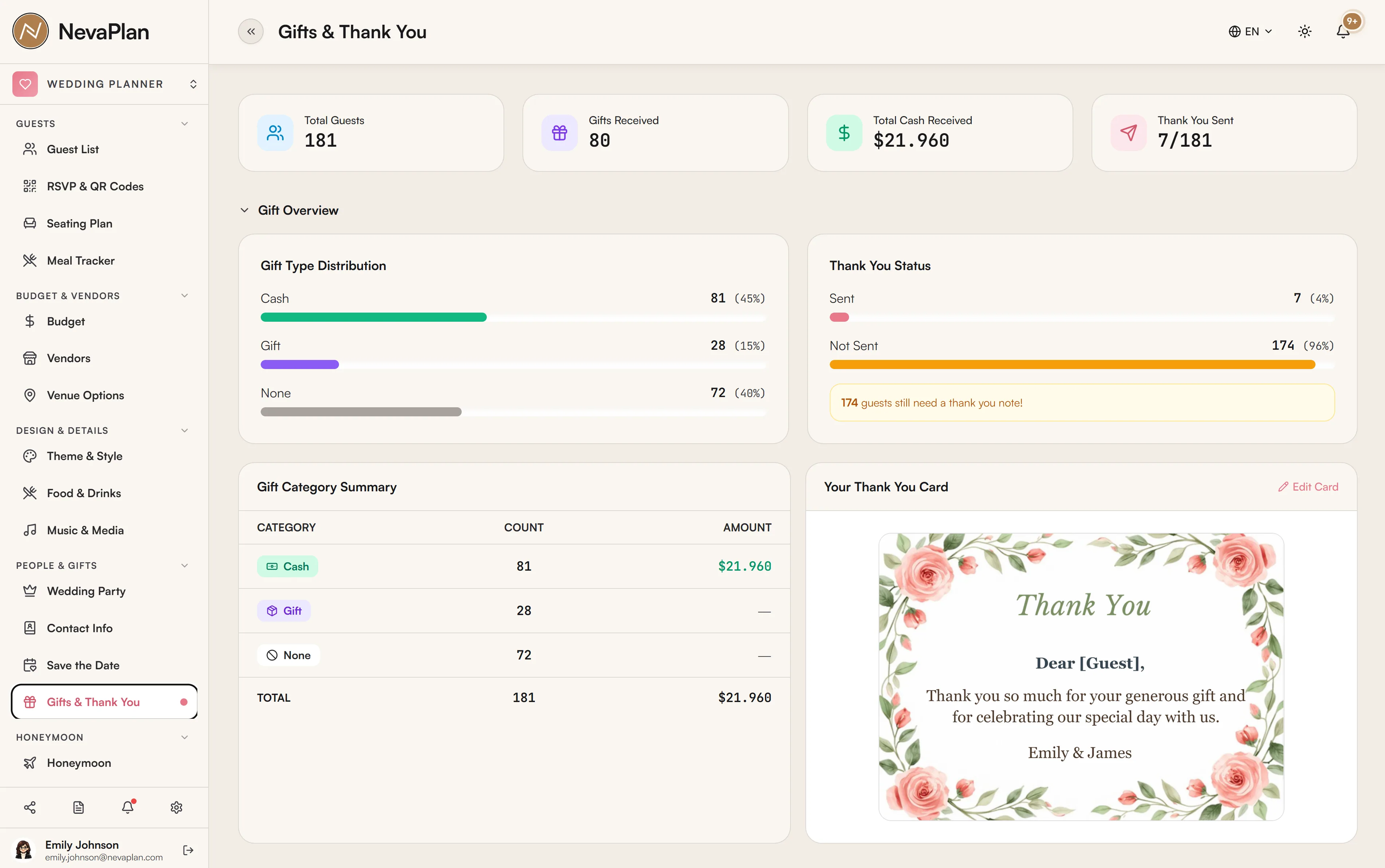
The stats at the top
Four cards summarize where you stand:
- Total Guests
- Gifts Received — how many guests gave something
- Total Cash — the sum of monetary gifts
- Thank You Sent — how many thank-yous are done
Recording a gift
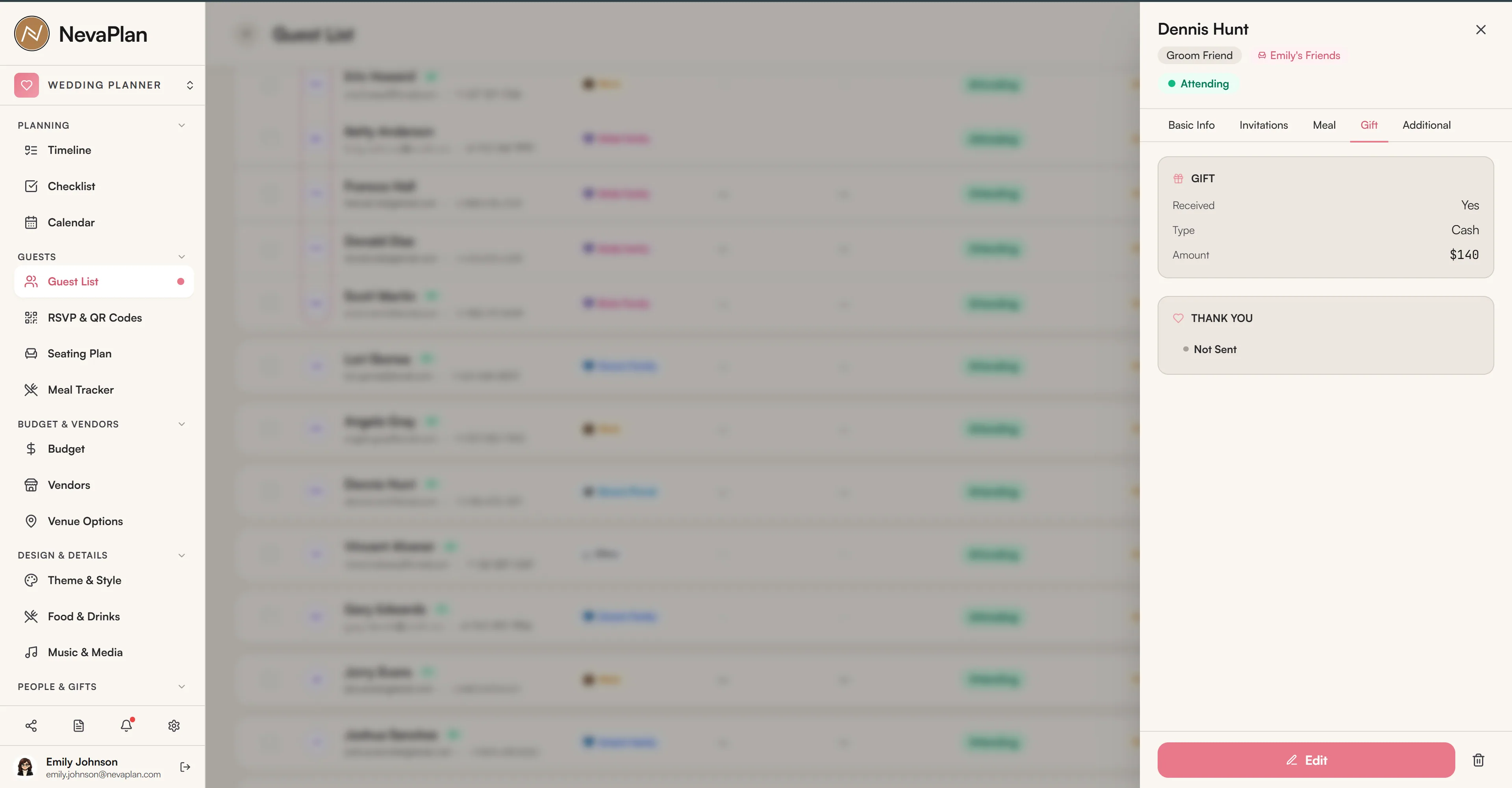
Each guest carries a few gift fields. Open a guest's Edit on this page (or from the Guest List drawer) and set:
| Field | Note |
|---|---|
| Gift Received | Toggle — did this guest give something |
| Gift Type | Cash, Gift (a physical present), or None |
| Gift Amount | Only for Cash — the value, in your currency |
| Thank You Sent | Toggle — whether they've been thanked |
There's one gift record per guest, kept right alongside their RSVP and meal info, so the gift list stays aligned with the guest list one-to-one.
The Gift Overview
Expand the Gift Overview for the bigger picture:
- Gift Type Distribution — Cash vs Gift vs None, with percentages
- Thank You Status — Sent vs Not Sent
- Gift Category Summary — a table of counts and the cash total
- Your Thank You Card — a preview of your saved card, with a link to edit it
That last one ties this page to the Thank You Cards designer — the card you design there is the card you send from here.
Filtering to the right people
Above the guest table, filters narrow the list to exactly who you want to act on:
- Gift Type — All / Cash / Gift / None
- Amount Range — bands (under $100, $101–$500, … ) or a custom min/max
- Thank You Status — All / Not Sent / Sent
- Search — by guest name
The classic move: filter to Thank You Status: Not Sent to see exactly who still needs a card.
Sending thank-yous
This is where the page earns its keep. Pick a channel with the tabs:
- Email — the system renders your thank-you card personalized for each guest and sends it
- WhatsApp — copies the card image and opens WhatsApp so you can send it yourself
Send per guest with the Send button on their row, or select several and use Send Email for a batch. Each guest's thank-you is tracked per channel — emailed and WhatsApp'd are recorded separately — so the Reset action and the status icons always reflect reality.
Record gifts as they arrive (cash, checks, registry deliveries), then run sending in weekly batches. Filter to Not Sent, send ten, and watch the "Thank You Sent" stat climb. Two months of weekly sessions clears a typical wedding.
Money gifts don't sync to Budget
Gift records — including cash totals — live only inside Wedding Planner. They do not flow into Budget Planner as income. If you want a full post-wedding cash-flow picture that includes gifts, record them manually as income on the Budget side.
Recording gifts during the wedding
On the day, gifts arrive in waves. Give a trusted person (a parent, the maid of honor) EDIT access to the GUEST_SEATING module under Sharing so they can log gifts from their phone, or photograph the cards and envelopes and enter them the next morning. The earlier you log, the less guessing later.
A guest who isn't on your list
There's no separate "external giver" record — gifts attach to guest rows. If someone who wasn't invited sends a gift, add them to the guest list (RSVP set to Not Attending) and record the gift on that row, so they still show up in your thank-you tracking.
Next steps
- Design your thank-you card first — it's what gets sent from here
- Make sure guests have emails/phones so cards can reach them
- Export the guest list (with gift columns) if you want a printed record
FAQ
On the Thank You Cards page. This page sends and tracks; that page designs. The Gift Overview here shows a preview of your saved card with a link to edit it.
Because thank-you status is tracked per channel. Sending by email marks the email status; it doesn't touch WhatsApp. This lets you, say, email most guests and WhatsApp the few without an email — without double-counting. Use Reset to clear a channel's status.
No. Gifts (including the cash total) stay within Wedding Planner. To include them in your overall finances, add them as income manually in Budget Planner.
Each guest has one gift record. Merge them: set the type to Cash with the amount if there's money, and note the physical gift in the guest's notes. The model is one gift per guest, kept simple.
You can select multiple guests and use Send Email for a batch (sends process a few at a time). WhatsApp is one at a time by nature, since it opens the WhatsApp app for you to hit send. Filter to Not Sent first so you only message people who still need thanking.
Not through the automated send (it needs a contact method). Mark their thank-you sent manually once you've handled it another way (a posted card, in person), so your tracking stays accurate.